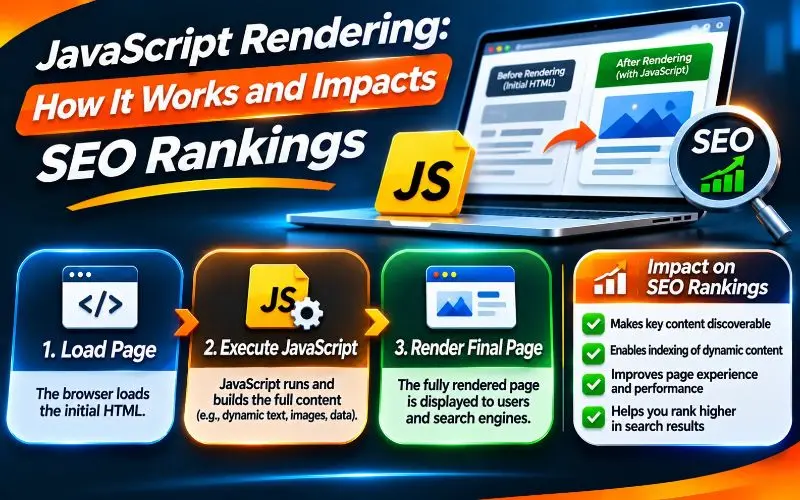
Your website looks perfect in a browser. Every product, review, and button loads beautifully.
But Google might see something very different. It might see an almost empty page.
That gap is the JavaScript rendering problem. It quietly costs many modern websites their rankings, traffic, and now their AI visibility.
In this guide, the SEO team at 4P Wisdom explains JavaScript rendering in plain English. You will learn how it works and how Google processes it. You will see why AI crawlers struggle with it and which rendering method fits your site. Finally, you will learn how to test and fix rendering issues step by step.
What Is JavaScript Rendering?
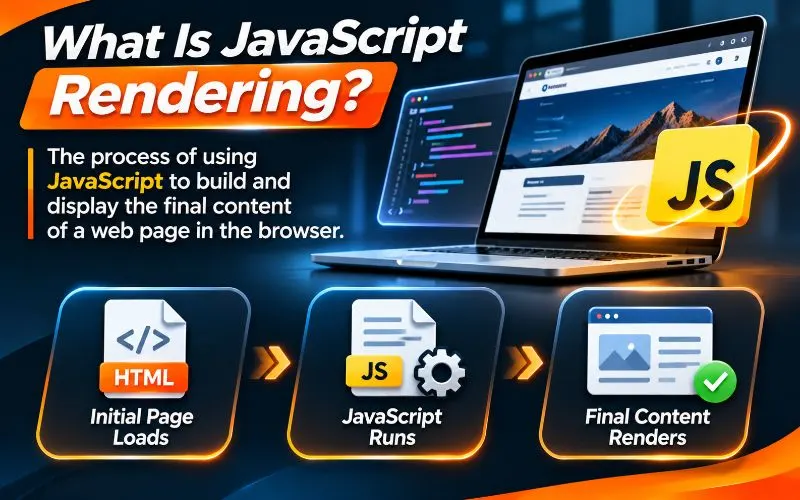
JavaScript rendering is the process of running JavaScript code to build a webpage’s final content. The result is the page people actually see and interact with.
Websites are built with three core languages. HTML provides the structure. CSS controls the design. JavaScript adds behavior, interactivity, and often the content itself.
On a traditional website, the server sends complete HTML. The content is ready the moment the page arrives.
On a JavaScript-heavy website, the server often sends a nearly empty HTML shell. JavaScript then fetches data and builds the content inside the browser.
Rendering is that building step. Someone has to do it, either the server, the browser, or the search engine.
Why Rendering Matters for SEO
Search engines can only rank what they can see. If your content appears only after JavaScript runs, search engines must render it first.
Rendering takes time, computing power, and a working setup. When any part fails, your content may be delayed, incomplete, or missing from the index.
Raw HTML vs Rendered HTML
Every JavaScript page has two versions. Understanding both is the key to JavaScript SEO.
Raw HTML is the code your server sends first. You can see it with “View Page Source” in your browser.
Rendered HTML is the final page after JavaScript runs. You can see it in Chrome DevTools under the Elements panel.
If your important content appears only in the rendered version, you depend on rendering. That dependency creates SEO risk.
How Browsers Render JavaScript

When a visitor opens your page, the browser follows a clear sequence.
- It downloads the HTML document from your server.
- It parses the HTML and builds the Document Object Model, or DOM.
- It downloads CSS and JavaScript files referenced in the page.
- Its JavaScript engine parses, compiles, and runs the code.
- The code changes the DOM by adding content, links, and features.
- The browser paints the final page on screen.
Chrome uses the V8 JavaScript engine for this work. Safari and Firefox use their own engines.
Humans rarely notice this process. Search engine crawlers, however, must handle it at a massive scale.
How Google Renders JavaScript
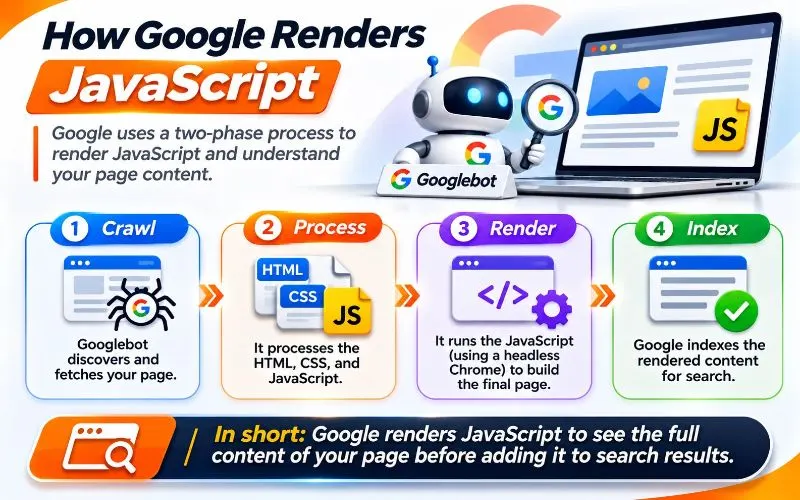
Google processes JavaScript pages in three main phases. Google explains this in its JavaScript SEO basics guide.
Phase 1: Crawling
Googlebot requests your URL and downloads the raw HTML. It checks your robots.txt rules first to confirm it may crawl the page.
At this stage, Google can already read any content and links in the raw HTML.
Phase 2: Rendering
Next, the page enters a render queue. Google’s Web Rendering Service then loads the page in a headless browser.
Since 2019, this service has used an evergreen version of Chromium. That means it supports modern JavaScript features, much like the latest Chrome browser.
The service runs your JavaScript, builds the final DOM, and captures the rendered HTML.
Phase 3: Indexing
Google analyzes the rendered HTML and decides whether to index the page. It also finds new links in the rendered content and queues them for crawling.
Does Google Render Every Page?
Google says it renders all HTML pages that are eligible for indexing. That includes JavaScript-heavy pages.
A 2024 study by Vercel and MERJ tested this claim on over 100,000 Googlebot fetches. Google rendered every eligible HTML page, including complex JavaScript pages.
The study also measured rendering delays. The median delay was about 10 seconds. But a small share of pages waited hours before rendering.
So Google can render JavaScript well. The real risks lie in delays, failures, and mistakes in how your site is built.
The Two Wave Indexing Myth
Many older guides describe “two wave indexing.” They claim Google indexes raw HTML first, then returns days or weeks later.
Google’s Martin Splitt has said this model is an oversimplification. Today, rendering usually happens quickly after crawling.
Still, delays do happen. Content that depends on rendering is never as safe as content in the raw HTML.
How Other Search Engines and AI Crawlers Handle JavaScript

Google is the strongest JavaScript renderer. Many other crawlers are far weaker.
Bing
Bingbot uses a Chromium-based rendering engine, similar to Microsoft Edge. It can render JavaScript, but less consistently than Google at scale.
Bing data also powers several AI search tools. So weak rendering on Bing can affect visibility in more places. Check your pages in Bing Webmaster Tools.
AI Crawlers
This is the biggest JavaScript SEO change in years.
Research from Vercel found that major AI crawlers do not run JavaScript. OpenAI’s GPTBot and Anthropic’s ClaudeBot download JavaScript files but do not execute them.
These bots see only your raw HTML. If your content loads through JavaScript, AI tools may see an empty page.
There are exceptions. Google’s Gemini relies on Google’s own rendering infrastructure. Apple’s crawler also renders JavaScript.
This matters for AI visibility. A page that ChatGPT cannot read is a page ChatGPT cannot cite.
Learn more about AI visibility in our guide on how to rank in Google’s AI Overviews. You may also want to read what llms.txt is and whether it helps.
How JavaScript Rendering Impacts SEO Rankings
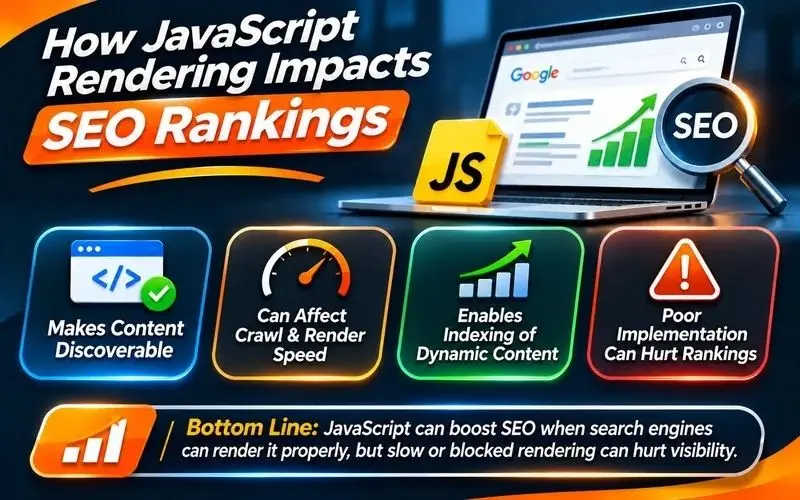
JavaScript itself is not bad for SEO. Google uses JavaScript across its own products. The problems come from how sites depend on it.
Delayed Indexing
Pages that need rendering may wait in the render queue. For news, events, and limited-time offers, delays can mean missed traffic.
Missing or Incomplete Content
If a script fails, times out, or loads slowly, Google may index a partial page. Missing text means missing keyword relevance.
Undiscovered Pages
Links created only by JavaScript may not be found quickly, or at all. Pages without discoverable links become orphans.
This is one of the most common crawlability problems on modern websites.
Conflicting SEO Signals
JavaScript can change titles, canonical tags, and robots meta tags after the page loads. When raw and rendered versions disagree, Google may choose the wrong signals.
Slower Page Experience
Heavy JavaScript slows loading and responsiveness. This hurts Largest Contentful Paint and Interaction to Next Paint. Both are part of Google’s Core Web Vitals.
Wasted Crawl Resources
Rendering costs Google more resources than reading plain HTML. On large sites, heavy JavaScript can reduce how many pages Google processes. Learn more in our guide on what crawl budget is and how it impacts SEO.
Lost AI Search Visibility
As covered above, most AI crawlers skip JavaScript. JavaScript-only content may never appear in AI answers.
JavaScript Rendering Methods Explained
Your rendering method decides who builds the page and when. It is the single biggest JavaScript SEO decision you will make.
Client-Side Rendering (CSR)
With client-side rendering, the browser does all the work. The server sends a minimal HTML shell and JavaScript files. The browser then builds the page.
Many single-page applications built with React, Vue, or Angular use this approach by default.
Pros:
- Smooth, app-like navigation after the first load.
- Lower server costs.
- Rich interactivity for logged-in experiences.
Cons:
- Slower first load, especially on mobile devices.
- Search engines must render pages to see content.
- AI crawlers usually see empty pages.
- Higher risk of indexing problems.
Best for: dashboards, account areas, and internal tools that do not need search traffic.
Server-Side Rendering (SSR)
With server-side rendering, the server runs JavaScript for every request. It sends fully built HTML to the browser.
Frameworks like Next.js, Nuxt, SvelteKit, and Angular support server-side rendering.
Pros:
- Content appears in the raw HTML immediately.
- Search engines and AI crawlers can read pages easily.
- Faster first content display for users.
Cons:
- Higher server load and hosting costs.
- Slower Time to First Byte if servers are underpowered.
- More complex setup and caching.
Best for: ecommerce stores, news sites, and pages with frequently changing content.
Static Site Generation (SSG)
With static site generation, pages are built ahead of time during a build process. The server simply delivers ready made HTML files.
Astro, Gatsby, Hugo, and Next.js all support static generation.
Pros:
- Extremely fast loading from a content delivery network.
- Excellent for search engines and AI crawlers.
- Low hosting costs and strong security.
Cons:
- Content updates require a rebuild.
- Not ideal for highly personalized or real time content.
Best for: blogs, service websites, documentation, and marketing pages.
Our comparison of static vs dynamic websites explains this choice in more depth.
Incremental Static Regeneration (ISR)
Incremental static regeneration combines static speed with fresh content. Pages are built statically, then rebuilt automatically after a set time or trigger.
Next.js popularized this approach. It suits large catalogs where content changes regularly but not every second.
Best for: large ecommerce stores and programmatic SEO websites with thousands of pages.
Hydration
Hydration is the step where JavaScript “wakes up” server-rendered HTML. The page arrives fully built, then scripts attach interactivity.
Hydration gives you search-friendly HTML and app-like features together. But heavy hydration can slow responsiveness and hurt Interaction to Next Paint.
Modern approaches reduce this cost. Partial hydration and islands architecture, used by Astro, hydrate only interactive parts of the page. React Server Components reduce how much JavaScript reaches the browser.
Dynamic Rendering
Dynamic rendering serves prerendered HTML to bots and JavaScript pages to humans. Tools like Prerender.io offer this as a service.
Google once suggested it for complex sites. Today, Google calls it a workaround, not a long-term solution. It adds maintenance work and risks serving bots different content.
If you use it, make sure bots and users see the same content. Showing different content could be treated as cloaking.
Which Rendering Method Is Best for SEO?
For most websites, server-side rendering or static generation is the safest choice. Both put content in the raw HTML, where every crawler can read it.
Here is a simple way to decide.
- Content rarely changes: choose static site generation.
- Large catalog with regular updates: choose incremental static regeneration.
- Highly dynamic or personalized public pages: choose server-side rendering.
- Private dashboards and logged-in areas: client-side rendering is fine.
Many modern frameworks let you mix methods page by page. Use the right method for each page type.
Common JavaScript SEO Mistakes and How to Fix Them
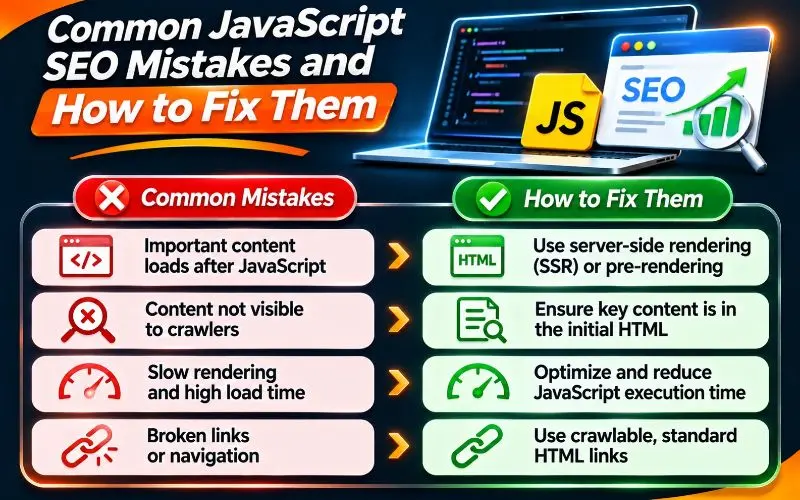
These are the issues we find most often in JavaScript audits.
1. Links Without Real Anchor Tags
Google follows links only when they use an anchor element with an href attribute. It does not click buttons or trigger JavaScript events.
Navigation built with onclick events or span elements may stay invisible to crawlers.
Fix: Use standard anchor links with full URLs for every navigation path. Read Google’s guide on making links crawlable.
Strong links also support your internal linking strategy.
2. Hash-Based URLs
Some single-page applications use URLs with a hash symbol to show different views. Google generally ignores everything after the hash.
That means many “pages” collapse into one URL in Google’s eyes.
Fix: Use the History API to create clean, unique URLs for each view.
3. Noindex in Raw HTML, Removed by JavaScript
This trap catches many developers. Some sites place a noindex tag in the raw HTML, then remove it with JavaScript.
Google may see the noindex tag and skip rendering entirely. The page then stays out of the index.
Fix: Never rely on JavaScript to remove noindex. Set the correct robots meta tag in the raw HTML.
4. Conflicting Canonical Tags
JavaScript sometimes injects a different canonical tag than the raw HTML contains. Google then receives two conflicting signals.
Fix: Set the canonical tag correctly in the raw HTML, and keep it unchanged after rendering. Learn more in our guide on what a canonical tag is.
5. Soft 404 Errors in Single Page Applications
Single page applications often show “page not found” messages while returning a 200 status. Google sees these as soft 404 errors.
Fix: Return a real 404 status from the server for missing pages. Alternatively, redirect users to a dedicated error URL that returns a 404. If content moved, use the correct redirect. Our guide on the difference between 301 and 302 redirects explains which to choose.
6. Blocking JavaScript or CSS in Robots.txt
If robots.txt blocks script or style files, Google cannot render your pages properly. Pages may appear broken or empty.
Fix: Allow crawling of all JavaScript and CSS files needed for rendering.
7. Content That Needs User Interaction
Googlebot does not click, type, hover, or scroll like a person. Content hidden behind “load more” buttons or tabs may never be seen.
Google renders pages with a very tall viewport instead of scrolling. Content that loads only on scroll events may fail.
Fix: Load important content without interaction. For lazy loading, use native browser lazy loading or the Intersection Observer API. Give paginated content its own crawlable URLs. Follow Google’s lazy loading guidance.
8. Relying on Cookies or Local Storage
Googlebot does not keep cookies, local storage, or session data between page loads. Every visit starts fresh.
Content that depends on saved preferences or session state may not appear.
Fix: Make sure every public page loads its core content without stored data.
9. Slow or Failing API Calls
Many JavaScript pages fetch content from APIs. If those calls are slow, blocked, or failing, Google sees empty sections.
Fix: Keep API responses fast and reliable. Make sure API endpoints are not blocked by robots.txt or firewalls.
10. Structured Data Injected Too Late
Google can read structured data added with JavaScript. But late or broken scripts may prevent it from appearing.
AI crawlers that skip JavaScript will miss it completely.
Fix: Place structured data directly in the server-rendered HTML when possible. Learn how in our guide on what schema markup is and how to implement it.
11. Outdated Cached Resources
Google caches JavaScript and CSS files aggressively. It may ignore your normal cache headers.
If you update a script but keep the same file name, Google may render pages with old code.
Fix: Use content fingerprinting in file names, such as adding a version hash. Most modern build tools do this automatically.
12. Oversized JavaScript Bundles
Huge bundles slow down rendering for users and crawlers alike. Googlebot also processes only the first 15MB of each file.
Fix: Split code into smaller chunks. Remove unused libraries. Defer scripts that are not needed for the first view.
How to Test JavaScript Rendering for SEO
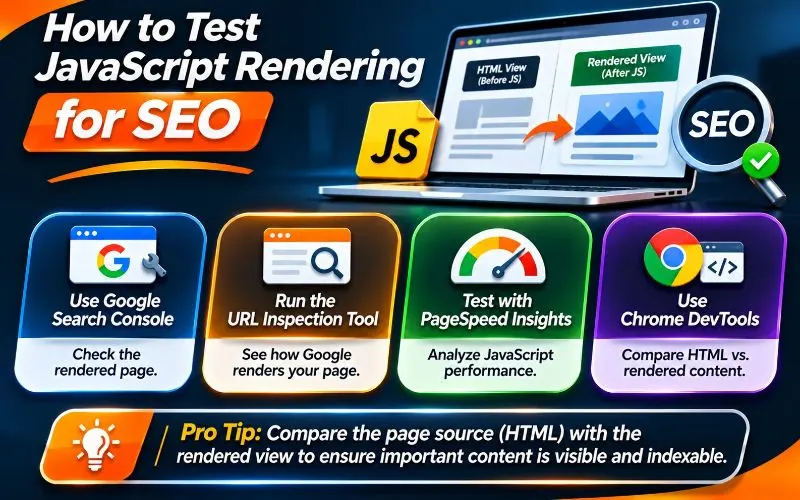
Never assume Google sees what you see. Test it directly with these methods.
1. Compare Page Source With the Rendered DOM
Open your page in Chrome. Right-click and choose “View Page Source” to see raw HTML.
Then open DevTools and check the Elements panel for rendered HTML. Compare the two for missing content, links, and tags.
2. Disable JavaScript in Your Browser
In Chrome DevTools, open the command menu and disable JavaScript. Reload the page.
Whatever disappears depends on JavaScript. This also shows roughly what AI crawlers see.
3. Use the URL Inspection Tool
Open Google Search Consoleand inspect your URL. Click “Test Live URL,” then “View Tested Page.”
Check the rendered HTML, the screenshot, and the “More info” tab. The More info tab lists failed resources and JavaScript console errors.
4. Use the Rich Results Test
The Rich Results Test works even for pages outside your Search Console account. It shows rendered HTML and any structured data Google detects.
5. Search Google for Your Content
Copy a unique sentence that loads through JavaScript. Search for it in Google using quotation marks with a site search operator.
If your page does not appear, Google may not have indexed that content.
6. Crawl With JavaScript Rendering Enabled
Use Screaming Frog SEO Spiderwith JavaScript rendering turned on. It can compare raw and rendered HTML side by side.
Look for differences in titles, canonicals, content, and links. Sitebulb, Semrush, and Ahrefs offer similar features.
7. Check Performance in PageSpeed Insights
Run key templates through PageSpeed Insights. Look at Total Blocking Time, Largest Contentful Paint, and Interaction to Next Paint.
Long tasks and unused JavaScript warnings point to rendering bottlenecks.
8. Review Server Logs and Crawl Stats
Check Search Console’s Crawl Stats report under Settings. It shows how often Googlebot requests JavaScript files.
Server logs reveal whether bots fetch your scripts and API endpoints successfully.
JavaScript SEO Best Practices Checklist
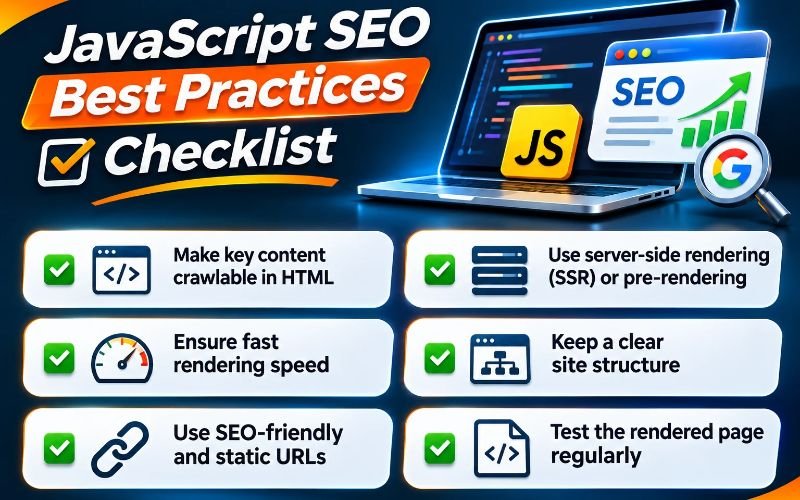
Use this checklist before launching any JavaScript website.
- Put critical content in the server-rendered or static HTML.
- Set titles, meta descriptions, and canonical tags in raw HTML.
- Never use JavaScript to remove a noindex tag.
- Use standard anchor links with real URLs for navigation.
- Create unique, clean URLs with the History API.
- Return correct HTTP status codes for missing and moved pages.
- Allow crawling of JavaScript, CSS, and API endpoints.
- Load important content without clicks, scrolling, or stored data.
- Place structured data in server-rendered HTML.
- Keep JavaScript bundles small and split by route.
- Use fingerprinted file names for updated scripts.
- List all important URLs in a clean XML sitemap.
- Test rendering with URL Inspection and a JavaScript crawler.
- Check what AI crawlers see by disabling JavaScript.
JavaScript and Website Accessibility
JavaScript-heavy sites often create accessibility problems. Screen readers struggle with buttons pretending to be links and content that changes without warning.
Accessible JavaScript usually helps SEO too. Semantic HTML, real links, and clear headings help both users and crawlers.
Learn how to test your site in our guide on how to check website accessibility.
JavaScript Rendering During Website Migrations
Switching to a JavaScript framework is one of the riskiest migrations possible. Many sites lose traffic after moving from WordPress to a single-page application.
Before launch, test rendering on staging with URL Inspection and a JavaScript crawler. Compare every template against the old site.
Keep URLs, titles, content, and internal links the same wherever possible. Our website migration SEO checklist covers every step.
JavaScript SEO for Local Businesses

Many local business websites use page builders, booking widgets, and map embeds. These often depend on JavaScript.
Make sure your business name, address, phone number, and services appear in plain HTML. Do not hide service areas inside JavaScript tabs or sliders.
Keep these details consistent with your Google Business Profile. Our Google Business Profile optimization services help keep your local information aligned. For the full strategy, read our local SEO guide.
Service businesses also benefit from AI visibility. Learn how service businesses can win with AI search SEO.
When to Get Expert Help
JavaScript SEO sits where development and marketing meet. Small mistakes in code can quietly remove pages from search.
Consider expert help if your site runs on React, Vue, or Angular. The same applies if traffic dropped after a redesign or framework change.
At 4P Wisdom, JavaScript rendering audits are part of our technical SEO services. We compare raw and rendered HTML, test AI crawler visibility, and work with your developers. Then we track results with theSEO KPIs that matter most.
Final Thoughts
JavaScript powers some of the best experiences on the web. But it adds a rendering step between your content and search engines.
Google can render JavaScript well, but delays and mistakes still happen. Most AI crawlers cannot render it at all.
The safest path is simple. Put your important content, links, and SEO tags in the initial HTML. Use server-side rendering or static generation for public pages. Then test what Google and AI crawlers actually see.
Rendering is one part of technical health. Review every other area in our technical SEO checklist and our complete SEO checklist.
Want to know what Google really sees on your site? Contact 4P Wisdom for a JavaScript SEO audit.
Frequently Asked Questions
Can Google crawl and index JavaScript websites?
Yes. Google renders JavaScript using an evergreen version of Chromium. However, rendering can be delayed, and coding mistakes can hide content. Important content is safest in the initial HTML.
Is client-side rendering bad for SEO?
Not always, but it carries more risk. Search engines must render pages before seeing content, and most AI crawlers cannot. For public pages, server-side rendering or static generation is usually safer.
What is the best JavaScript rendering method for SEO?
Server-side rendering and static site generation are the best options for most public websites. Both deliver complete HTML that every crawler can read. Many frameworks let you mix methods by page type.
Do AI crawlers like ChatGPT render JavaScript?
Most do not. Research shows OpenAI’s GPTBot and Anthropic’s ClaudeBot do not execute JavaScript. They read only raw HTML, so JavaScript-only content may be invisible to them.
How can I check if Google renders my page correctly?
Use the URL Inspection tool in Google Search Console and run a live test. Review the rendered HTML, screenshot, and any resource errors. The Rich Results Test offers a similar view.
Is dynamic rendering still recommended?
No. Google now calls dynamic rendering a workaround, not a long-term solution. Server-side rendering, static generation, or hydration are better choices for modern websites.
Leave a Reply