Imagine trying to use a website without a mouse. Or with a screen reader. Or with low vision on a small phone screen.
For millions of people, that is everyday life. And most websites still make it harder than it should be.
Website accessibility means everyone can use your site, including people with disabilities. It also improves usability, SEO, and conversions for every visitor.
In this guide, the SEO team at 4P Wisdom shows you how to check your website’s accessibility step by step. You will learn which tools to use, how to test manually, and how to fix the most common issues.
What Is Website Accessibility?
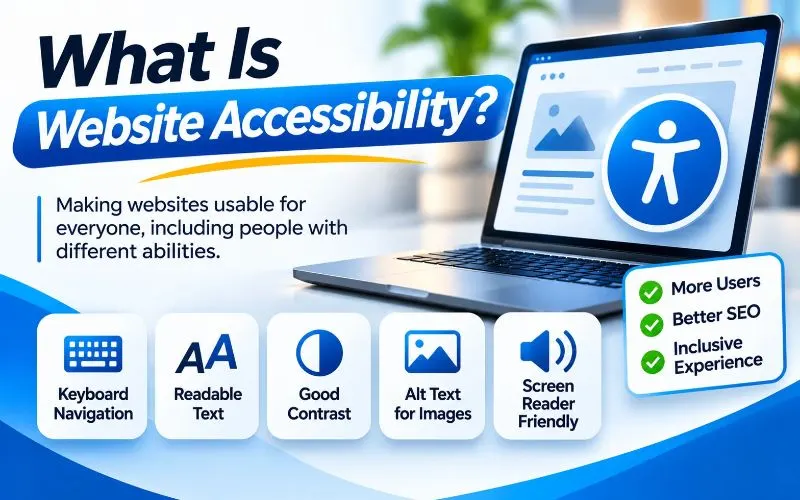
Website accessibility is the practice of designing and building websites that people with disabilities can perceive, understand, navigate, and use.
It covers many types of disability. These include visual, hearing, motor, cognitive, and speech disabilities. It also helps people with temporary injuries, aging eyes, or slow internet connections.
Around 1.3 billion people live with significant disability worldwide, according to the World Health Organization. That is roughly one in six people.
An inaccessible website shuts many of them out.
The Four POUR Principles
The Web Content Accessibility Guidelines, known as WCAG, organize accessibility around four principles. Together, they spell POUR.
- Perceivable. Users can see or hear your content, through text alternatives, captions, and good contrast.
- Operable. Users can navigate with a keyboard, voice control, or other assistive tools.
- Understandable. Content and controls are clear, predictable, and easy to follow.
- Robust. Content works reliably with browsers and assistive technologies like screen readers.
Every accessibility check in this guide connects back to one of these principles.
WCAG Levels Explained
WCAG has three conformance levels.
- Level A covers the most basic requirements.
- Level AA covers the most common barriers. It is the standard most laws reference.
- Level AAA is the highest level. It is rarely required for entire websites.
Aim for WCAG 2.2 Level AA. The W3C published WCAG 2.2 in October 2023, adding new criteria for focus visibility, target size, and accessible authentication.
Why Website Accessibility Matters
Accessibility is not just a legal checkbox. It affects your audience, your rankings, and your revenue.
The Web Still Has a Serious Accessibility Problem
The WebAIM Million report tests the home pages of the top one million websites every year. Its 2026 results were worrying.
In February 2026, 95.9% of the top one million home pages had detectable WCAG failures. That figure rose from 94.8% in 2025, and pages averaged 56.1 errors each. voxboosterprioritypixels
WebAIM called this a reversal of several years of gradual improvement. Most websites still have basic, fixable problems. That creates a real opportunity for businesses that do it right. digitalapplied
Legal Requirements Are Growing
Accessibility laws now apply to more organizations than ever. Here are the main ones to know.
- The Americans with Disabilities Act (ADA). US courts regularly apply the ADA to business websites, and lawsuits remain common.
- ADA Title II rule. The Department of Justice now requires state and local governments to meet WCAG 2.1 Level AA. Larger government entities faced their first compliance deadline in April 2026. Read the rule on ADA.gov. hubinternationalamnet
- Section 508. Federal agencies and their contractors must follow Section 508 accessibility standards.
- European Accessibility Act. It applies to many digital products and services sold in the EU since June 2025.
This guide is not legal advice. Speak with a qualified attorney about your specific obligations.
Accessibility Supports SEO
Accessibility and SEO share many of the same foundations. Search engines and assistive technologies both read your code, not your design.
- Alt text helps screen readers and image search.
- Clear headings help screen reader users and search engines understand structure.
- Descriptive link text helps users and strengthens your internal linking strategy.
- Semantic HTML helps crawlers, screen readers, and AI agents read your pages.
- Captions and transcripts make video content searchable.
- Fast, stable pages help every user and support Core Web Vitals.
Clean structure also helps AI tools read and cite your content. Learn more in our guide on how to rank in Google’s AI Overviews.
Accessibility Improves Conversions
Accessible websites are easier for everyone. Clear forms, readable text, and simple navigation help all visitors complete tasks.
Accessibility also builds trust. Visitors remember brands that respect them.
The Most Common Website Accessibility Issues
The WebAIM Million shows that the same few problems appear again and again. Fix these first.
Six error types account for roughly 96% of all detected errors on top home pages. testparty
- Low contrast text appears on 83.9% of home pages. voxbooster
- Missing image alt text appears on 53.1% of home pages. voxbooster
- Missing form input labels appear on 51% of home pages. voxbooster
- Empty links appear on 46.3% of home pages. voxbooster
- Empty buttons appear on 30.6% of home pages. voxbooster
- Missing document language appears on 13.5% of home pages. voxbooster
The good news is clear. Fixing six common problems removes most detected errors.
How to Check Website Accessibility: Step by Step
No single tool finds every problem. The best approach combines automated scans, manual checks, and real assistive technology testing.
Step 1: Run an Automated Accessibility Scan
Automated tools find many code level problems in minutes. Start here to get a quick baseline.
Use one or more of these free tools:
- WAVE by WebAIM shows errors visually on your page.
- axe DevTools by Deque runs inside Chrome DevTools.
- Lighthouse in Chrome includes an accessibility audit.
- Accessibility Insights by Microsoft offers guided tests.
Scan your homepage, key service pages, contact page, and one blog post. Different templates often have different problems.
Remember one important limit. Automated tools catch only part of the problems. A perfect Lighthouse score does not mean your site is fully accessible.
Step 2: Test Keyboard Navigation
Many people cannot use a mouse. They navigate with a keyboard, switch device, or voice control.
Put your mouse aside and use only the keyboard.
- Press Tab to move forward through links, buttons, and form fields.
- Press Shift and Tab together to move backward.
- Press Enter to activate links and buttons.
- Use the Space bar for checkboxes and buttons.
- Use arrow keys inside menus, sliders, and radio groups.
- Press Escape to close popups and menus.
Check these things as you move:
- Can you reach every interactive element?
- Can you always see where the keyboard focus is?
- Does the focus order follow a logical reading order?
- Can you open and close menus and popups?
- Do you ever get trapped inside a widget?
- Is there a “Skip to main content” link at the top?
Keyboard testing reveals problems automated tools often miss.
Step 3: Check Color Contrast
Low contrast text is the most common accessibility error on the web. It affects people with low vision, color blindness, and anyone reading in bright sunlight.
WCAG Level AA requires these minimum contrast ratios:
- 4.5 to 1 for normal body text.
- 3 to 1 for large text, such as headings.
- 3 to 1 for icons, borders, and other important visual elements.
Use the free WebAIM Contrast Checker to test your colors. Pay special attention to light gray text, text over images, and button labels.
Step 4: Test With a Screen Reader
Screen readers read web pages aloud for blind and low vision users. Testing with one shows how your site really sounds.
Free options include:
- NVDA for Windows.
- VoiceOver, built into Mac computers and iPhones.
- TalkBack, built into Android phones.
Listen for these issues:
- Do images have meaningful descriptions?
- Do links and buttons announce clear purposes?
- Can you jump between headings easily?
- Are form fields announced with their labels?
- Are error messages read aloud?
Screen readers take practice. Start with simple tasks like navigating by headings.
Step 5: Check Zoom and Text Resizing
Many people zoom in to read comfortably. Your site must stay usable when they do.
- Zoom your browser to 200%. Text should remain readable without cut off content.
- Zoom to 400% on a desktop browser. Content should reflow into one column without horizontal scrolling.
- Increase text spacing and confirm nothing overlaps.
This test overlaps heavily with mobile usability. Our mobile SEO guide covers responsive layout in more depth.
Step 6: Review Images and Media
Check every important image, video, and audio file.
- Meaningful images need descriptive alt text.
- Decorative images should have empty alt text, so screen readers skip them.
- Videos need accurate captions.
- Audio content needs transcripts.
- Autoplaying media needs clear pause controls.
Step 7: Test Forms and Error Messages
Forms are where accessibility problems cost you leads directly.
- Every field needs a visible, connected label.
- Required fields must be clearly marked, not just with color.
- Error messages should explain the problem and how to fix it.
- Errors should be announced to screen readers.
- Users should not lose their entered data after an error.
Step 8: Check Headings and Page Structure
Screen reader users often navigate by headings. A clear structure acts like a table of contents.
- Each page should have one clear H1.
- Headings should follow a logical order without skipping levels.
- Headings should describe the section that follows.
- Use real lists for lists and real tables for tabular data.
- Use landmarks like header, nav, main, and footer.
Tools like WAVE and the HeadingsMap browser extension show your heading outline instantly.
Step 9: Use the W3C Easy Checks
The W3C offers a free, beginner friendly guide called Easy Checks. It walks you through basic tests without special tools.
It is a great starting point for marketers and business owners.
Step 10: Test With Real People
Nothing replaces feedback from people who use assistive technology every day. Consider usability testing with disabled users for important projects.
Their insights often reveal problems no tool or checklist would catch.
How to Fix Common Accessibility Issues
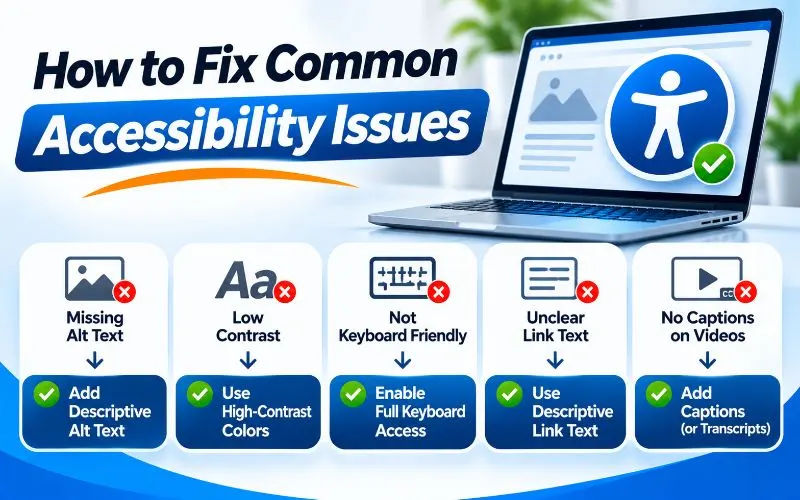
Now let’s fix the problems you found. Start with the six most common issues, then move to deeper improvements.
Fix Low Contrast Text
Darken light gray text and lighten dark backgrounds until they pass 4.5 to 1. Avoid placing text directly over busy images.
If you must use text over images, add a solid or semi transparent overlay behind the text.
Update colors in your design system or theme settings, so the fix applies everywhere.
Add Meaningful Alt Text to Images
Alt text describes an image for people who cannot see it. Write it as if describing the image over the phone.
- Keep it short and specific, usually one sentence.
- Describe the purpose of the image, not just its appearance.
- Avoid starting with “image of” or “picture of.”
- For linked images, describe the link destination.
- Use empty alt text for purely decorative images.
Good alt text also helps image search and multimodal search. Learn more in can adding more pictures improve SEO. Google now reports some visual search activity too, as covered in Search Console’s multimodal search reporting.
Label Every Form Field
Placeholder text is not a label. It disappears as users type and often has poor contrast.
Give every field a visible label connected to its input in the code. Group related fields, like radio buttons, with a clear group label.
Our guide to building a high converting local contact us page shows how to design forms that convert.
Fix Empty Links and Buttons
Empty links and buttons have no text for screen readers to announce. They often come from icon only buttons, like social media icons or search buttons.
Add hidden text or an ARIA label that describes each icon’s purpose. For example, a magnifying glass button should announce “Search.”
Write Descriptive Link Text
Avoid vague links like “click here,” “read more,” or “learn more.” Screen reader users often browse a list of links out of context.
Write link text that describes the destination. For example, use “read our technical SEO checklist” instead of “click here.”
This practice helps SEO too. Descriptive anchor text tells search engines what the linked page covers.
Set the Page Language
The page language tells screen readers how to pronounce content. Without it, a screen reader may read English with the wrong accent or rules.
Set the language attribute on your main HTML element. Most modern themes and platforms do this automatically, but always check.
Make Focus Visible
Keyboard users need to see where they are on the page. Many designers remove the focus outline because they find it unattractive.
Never remove focus styles without replacing them. Design a clear, high contrast focus indicator that matches your brand.
WCAG 2.2 also requires that focused elements are not hidden behind sticky headers or banners.
Add a Skip to Content Link
A skip link lets keyboard users jump past repeated navigation. Without it, they must tab through every menu item on every page.
Place the skip link first in the page. It can stay hidden until it receives keyboard focus.
Use Semantic HTML Before ARIA
ARIA attributes can add accessibility information to custom components. But misused ARIA often makes things worse.
The WebAIM Million found that pages using ARIA averaged 59.1 errors, compared with 42 on pages without it. voxbooster
Follow this simple rule. Use native HTML elements first. Use a real button element for buttons and a real anchor element for links. Add ARIA only when no native element fits.
Semantic HTML also helps search engines and AI crawlers. Many crawlability problems come from fake links built without proper anchor elements.
Make Interactive Targets Large Enough
Small buttons are hard to tap for people with tremors, limited dexterity, or large fingers.
WCAG 2.2 Level AA sets a minimum target size of 24 by 24 CSS pixels. Larger targets are even better on mobile.
Add Captions and Transcripts
Captions help deaf and hard of hearing users. They also help people watching videos without sound.
Use accurate captions, not just automatic ones. Review automatic captions for errors before publishing. Add transcripts for podcasts and audio content.
Respect Motion Preferences
Some animations trigger dizziness, nausea, or seizures. Avoid flashing content entirely.
Respect the reduced motion setting that users can turn on in their operating systems. Developers can detect this preference with CSS and reduce animations.
Give users controls to pause carousels, sliders, and autoplaying videos.
Make Dynamic Content Accessible
Modern websites update content without reloading the page. Screen readers may not notice these changes.
Announce important updates, like form errors or cart changes, using live regions. Manage keyboard focus when opening dialogs and menus.
Heavy JavaScript can create both accessibility and SEO problems. Learn more in our guide to JavaScript rendering for SEO.
Should You Use an Accessibility Overlay?
Accessibility overlays are widgets that promise instant compliance with one line of code. They are heavily marketed to small businesses.
Be careful. Many accessibility experts and disabled users criticize overlays. They do not fix the underlying code, and some interfere with assistive technology.
Overlays do not guarantee legal compliance either. In 2025, the US Federal Trade Commission fined overlay provider accessiBe $1 million over misleading claims.
Fix accessibility in your code and content. That is the only lasting solution.
Website Accessibility for WordPress Sites
WordPress powers a large share of business websites. It can be very accessible, but themes and plugins often create problems.
In the 2026 WebAIM Million, WordPress home pages averaged 52.8 errors, below the overall average. Shopify pages averaged 75.1 errors, notably above the average.prioritypixelsprioritypixels
Your platform is only part of the story. Your theme, plugins, and content choices matter more.
- Choose a theme tagged “Accessibility Ready” in the WordPress theme directory.
- Test page builder layouts carefully, because many add inaccessible code.
- Check sliders, popups, and form plugins with a keyboard.
- Add alt text when uploading every image.
- Use proper heading blocks rather than bold text for headings.
Choose trusted SEO and site tools too. Compare options in our list of the best WordPress SEO plugins.
How to Prioritize Accessibility Fixes
An audit may reveal hundreds of issues. Use this order to make steady progress.
- Fix blockers first. Anything that stops users from completing key tasks, like forms or checkout.
- Fix sitewide template issues. Headers, footers, and menus appear on every page.
- Fix the six common errors. Contrast, alt text, labels, empty links, empty buttons, and language.
- Fix high traffic pages. Focus on pages that bring the most visitors and leads.
- Fix remaining content issues. Update older posts and media gradually.
Track progress with regular scans and a simple issue log.
Build Accessibility Into Your Process
Accessibility is not a one-time project. Websites change constantly, and new content can introduce new barriers.
Train Your Team
Teach writers to add alt text and use clear headings. Teach designers about contrast and focus states. Teach developers semantic HTML and keyboard support.
Test Before Every Launch
Add accessibility checks to every redesign, migration, and major update. Test templates on staging before they go live.
Our website migration SEO checklist includes testing steps you can extend for accessibility.
Publish an Accessibility Statement
An accessibility statement explains your commitment, standards, known issues, and contact options. It builds trust and gives users a way to report problems.
The W3C offers a free accessibility statement generator.
Monitor Regularly
Run automated scans monthly. Perform deeper manual audits at least once or twice a year.
Website Accessibility for Local Businesses
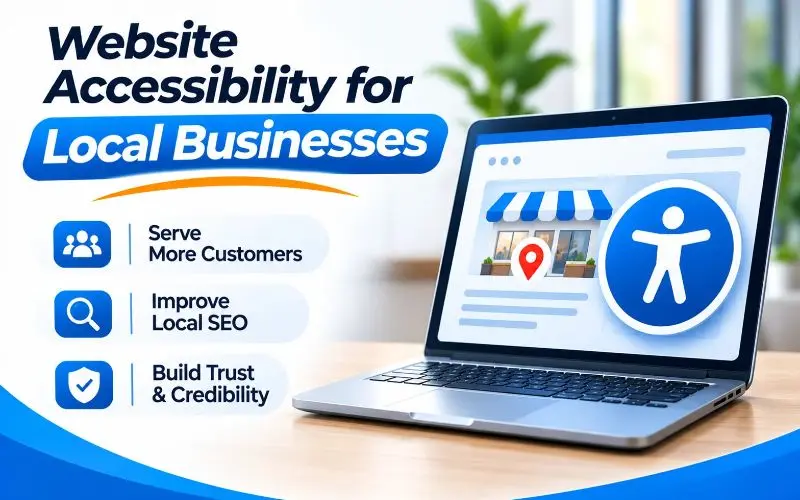
Local customers include people of every ability. An inaccessible website can quietly turn them away.
Make sure your phone number, address, hours, and booking options are easy to reach by keyboard and screen reader. Avoid putting key details inside images or PDF menus.
Keep your information consistent across your website and Google Business Profile. Google Business Profile also lets you list accessibility attributes, such as wheelchair accessible entrances.
Our Google Business Profile optimization services help you present accurate, complete local information. For the full strategy, read ourlocal SEO guide.
Website Accessibility Checklist
Use this quick checklist during your next review.
- Text meets a contrast ratio of at least 4.5 to 1.
- Every meaningful image has descriptive alt text.
- Decorative images use empty alt text.
- Every form field has a visible, connected label.
- Links and buttons have clear, descriptive text.
- The page language is set correctly.
- Every interactive element works with a keyboard.
- Keyboard focus is always clearly visible.
- A skip to content link is available.
- Headings follow a logical structure with one H1.
- Pages work at 200% zoom without lost content.
- Videos have accurate captions, and audio has transcripts.
- Interactive targets are at least 24 by 24 CSS pixels.
- Animations respect reduced motion settings.
- Native HTML is used before ARIA.
- An accessibility statement is published and up to date.
Accessibility is one part of overall website health. Review every other area in our technical SEO checklist and our complete SEO checklist.
When to Get Expert Help
Simple fixes like alt text and contrast are easy to handle in-house. Complex issues often need specialist support.
Consider expert help if your site uses custom JavaScript components, complex forms, or ecommerce checkouts. The same applies if you face legal requirements or upcoming deadlines.
At 4P Wisdom, accessibility reviews are part of our technical SEO services. We combine automated scans with manual keyboard and screen reader testing. Then we prioritize fixes that improve both accessibility and search performance.
Need a more accessible website build? Our responsive web design services create sites that work for every visitor.
Final Thoughts
Website accessibility is about people. It ensures everyone can read your content, use your forms, and become your customer.
Most websites still fail basic checks. That means fixing common issues can quickly set your business apart.
Start with an automated scan. Then test with a keyboard, check contrast, and listen with a screen reader. Fix the six most common errors first, then build accessibility into every update.
Better accessibility leads to better usability, stronger SEO, and more trust. Everyone wins.
Want a professional accessibility and technical SEO review? Contact 4P Wisdom and let our team help.
Frequently Asked Questions
How do I check if my website is accessible?
Start with a free automated tool like WAVE, axe DevTools, or Lighthouse. Then test with only a keyboard, check color contrast, and try a screen reader. Combining automated and manual tests gives the most accurate picture.
What is the most common website accessibility issue?
Low contrast text is the most common issue. It appeared on 83.9% of top home pages in the 2026 WebAIM Million report. Missing alt text and missing form labels follow closely behind.
Which WCAG level should my website meet?
Aim for WCAG 2.2 Level AA. Level AA covers the most common barriers and is the standard most laws reference. Level AAA is rarely required for entire websites.
Does website accessibility help SEO?
Yes. Alt text, clear headings, descriptive links, captions, and semantic HTML help both users and search engines. Accessible sites also tend to be easier to use, which supports engagement and conversions.
Can an accessibility overlay make my site compliant?
No overlay can guarantee compliance. Overlays do not fix underlying code problems and may interfere with assistive technology. Real fixes in your code and content are the reliable solution.
How often should I test website accessibility?
Run automated scans monthly and after every major update. Perform a deeper manual audit at least once or twice a year. Test new templates and features before they go live.
Leave a Reply