
Your website might look fine on your laptop. But real visitors on real phones may be waiting, tapping, and watching pages jump around.
Google measures that experience with Core Web Vitals. These three metrics show how fast your page loads, how quickly it responds, and how stable it feels.
Good scores will not magically push you to the top of Google. But poor scores frustrate visitors, hurt conversions, and can hold back otherwise strong pages.
In this guide, the SEO team at 4P Wisdom explains Core Web Vitals in plain English. You will learn what each metric means and how to measure it correctly. Most importantly, you will learn exactly how to fix LCP, INP, and CLS problems.
What Are Core Web Vitals?
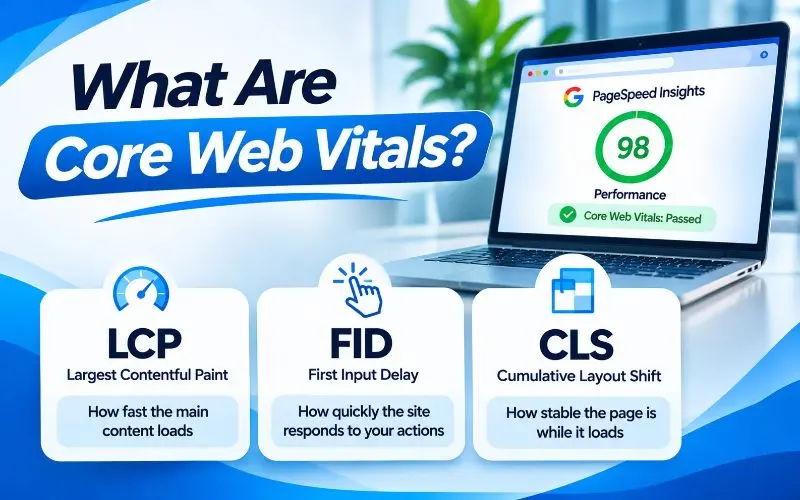
Core Web Vitals are three metrics Google uses to measure real user experience on a webpage. They focus on loading speed, responsiveness, and visual stability.
Google introduced Core Web Vitals in 2020. They became part of Google’s page experience signals in 2021.
Here are the three metrics and their “good” targets:
- Largest Contentful Paint (LCP) measures loading speed. Aim for 2.5 seconds or less.
- Interaction to Next Paint (INP) measures responsiveness. Aim for 200 milliseconds or less.
- Cumulative Layout Shift (CLS) measures visual stability. Aim for a score of 0.1 or less.
Google confirms these targets in its official Core Web Vitals documentation.
The 75th Percentile Rule
Google does not judge your page by its fastest or slowest visit. It uses the 75th percentile of real user visits.
That means at least 75% of visits must meet the “good” target. A page passes only when all three metrics reach that level.
Mobile and desktop are measured separately. Most sites score worse on mobile, so always check mobile first.
What Happened to First Input Delay?
First Input Delay, or FID, was the original responsiveness metric. Google replaced it with Interaction to Next Paint in March 2024.
FID measured only the delay before the first interaction. INP measures the full response time of interactions throughout the visit. It is a much stricter and more realistic measure.
Many older guides still mention FID. If yours does, it is out of date.
Do Core Web Vitals Affect SEO Rankings?
Yes, but not as much as many people think. It helps to be honest about their real impact.
What Google Says
Google says good Core Web Vitals align with what its core ranking systems seek to reward. They form part of the broader page experience picture.
But Google also says relevance and helpful content come first. A slow page with the best answer can still outrank a fast page with a weak answer.
Think of Core Web Vitals as a Tiebreaker
When several pages offer similar quality and relevance, experience signals can make the difference. Strong Core Web Vitals help you win close competitions.
They will not rescue thin content or a page that misses search intent.
The Bigger Win Is Business Performance
The strongest case for Core Web Vitals is not rankings. It is revenue.
Faster, smoother pages keep visitors engaged and convert more of them. For example, Vodafone improved its LCP by 31%. That led to 8% more sales, according to a Vodafone case study on web.dev.
Better experience also supports engagement signals, repeat visits, and brand trust. These benefits compound over time.
Core Web Vitals and AI Search
AI Overviews and AI Mode draw from Google’s standard index. Strong technical health helps your pages stay eligible and competitive there.
Fast, clean pages also help AI crawlers fetch content quickly and reliably. Learn more in our guide on how to rank in Google’s AI Overviews.
Field Data vs Lab Data: Why Your Scores Disagree

This is the most common source of confusion with Core Web Vitals. Understanding it saves hours of wasted effort.
Field Data
Field data comes from real Chrome users visiting your site. Google collects it through the Chrome User Experience Report, often called CrUX.
CrUX uses a rolling 28-day window. That means improvements take up to four weeks to fully appear.
Field data is what Google uses for page experience. It reflects real devices, networks, and user behavior.
Lab Data
Lab data comes from simulated tests, such as Lighthouse. It loads your page once under fixed conditions.
Lab data is great for debugging because results are repeatable. But it does not represent real users perfectly.
Lab tools also cannot measure INP accurately, because INP needs real interactions. Lighthouse shows Total Blocking Time as a stand-in.
Why the Numbers Differ
Your Lighthouse score might be 95 while your field data fails. Or the reverse.
Real users have slower phones, weaker networks, and different behaviors. They also interact with pages in ways lab tests cannot predict.
Always trust field data for your final verdict. Use lab data to find and test fixes.
What If Your Site Has No Field Data?
Smaller sites may not have enough Chrome traffic for page-level CrUX data. Google may then use origin-level data, which covers your whole domain.
If no field data exists, use lab tools and real user monitoring to guide improvements.
How to Measure Core Web Vitals
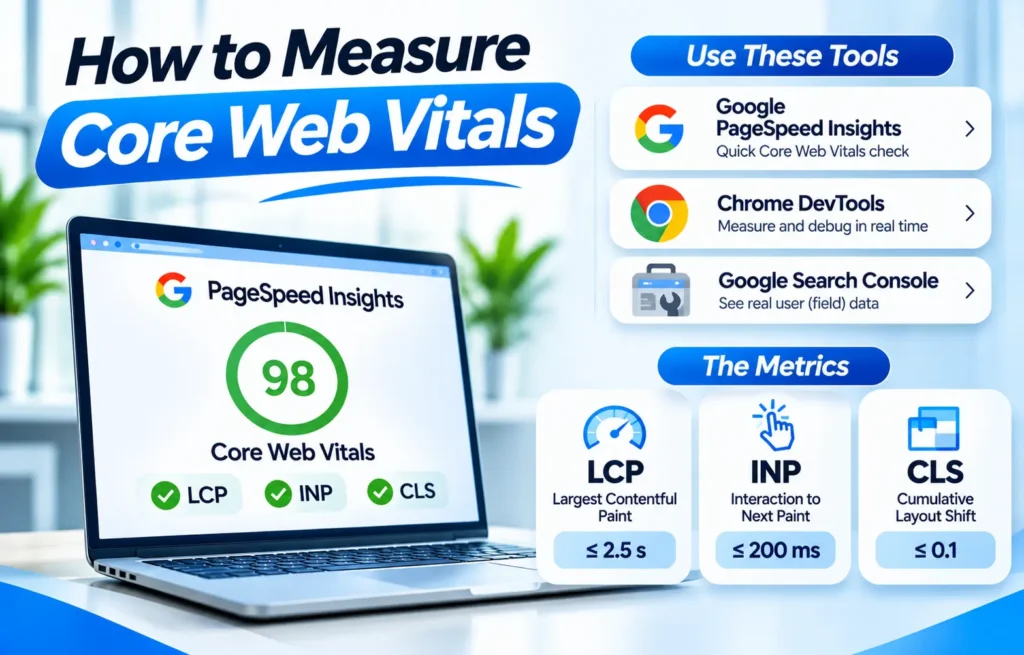
Use these tools together for a complete picture.
Google Search Console Core Web Vitals Report
Open Google Search Console and find the Core Web Vitals report under Experience.
It groups your URLs as Good, Needs improvement, or Poor. It separates mobile and desktop, and it groups similar pages.
Click into any issue to see example URLs. Read Google’s Core Web Vitals report guide for full details.
PageSpeed Insights
PageSpeed Insights shows both field data and lab data for any URL. The top section shows real user data. The lower section shows Lighthouse lab results and recommendations.
Always start with the mobile tab.
Lighthouse
Lighthouse runs inside Chrome DevTools. It audits performance, accessibility, and SEO.
Use it to test fixes before you deploy them.
Chrome DevTools Performance Panel
The Chrome DevTools Performance panel shows live Core Web Vitals as you browse. It also records detailed timelines.
Use it to find long tasks, slow interactions, and layout shifts.
WebPageTest
WebPageTest tests pages from real locations, devices, and network speeds. Its waterfall charts show exactly which files slow your page down.
Real User Monitoring
Real user monitoring tools collect Core Web Vitals from your own visitors. Google offers a free Web Vitals JavaScript library for this purpose.
Commercial tools like DebugBear and SpeedCurve offer dashboards and alerts. They help you find which pages and interactions cause problems.
How to Improve Largest Contentful Paint (LCP)
LCP measures how long the largest visible element takes to appear. This is usually a hero image, a banner, or a large heading.
Visitors judge your speed by this moment. If the main content appears late, the page feels slow.
Understand the Four Parts of LCP
Google’s LCP optimization guide breaks LCP into four parts. Knowing which part is slow tells you what to fix.
- Time to First Byte. How long your server takes to respond.
- Resource load delay. How long before the browser starts loading the LCP image.
- Resource load duration. How long the LCP image takes to download.
- Element render delay. How long before the element actually appears on screen.
PageSpeed Insights and DevTools show this breakdown. Fix the largest part first.
Fix 1: Improve Server Response Time
A slow server delays everything. Aim for a Time to First Byte under 800 milliseconds.
- Upgrade from cheap shared hosting if your server struggles.
- Use a content delivery network like Cloudflare.
- Enable full page caching for public pages.
- Optimize slow database queries and plugins.
- Return 304 status codes for unchanged resources.
Learn why caching matters in our article on why Google recommends 304 status codes.
Fix 2: Load the LCP Image Early
Many sites load their main image too late. The browser discovers it only after scripts or styles run.
- Place the LCP image directly in the HTML, not inside CSS or JavaScript.
- Add the fetchpriority attribute set to high on the LCP image.
- Preload the LCP image if the browser discovers it late.
- Never lazy load the LCP image.
Lazy loading the hero image is one of the most common LCP mistakes we see.
Fix 3: Make the LCP Image Smaller
Big images take longer to download, especially on mobile networks.
- Serve modern formats like WebP or AVIF.
- Compress images without visible quality loss.
- Use responsive images, so phones get smaller files.
- Size images to their actual display dimensions.
Images matter for SEO too. Learn how to balance quality and speed and whether adding more pictures can improve SEO.
Fix 4: Remove Render-Blocking Resources
CSS and JavaScript in the page head can block rendering. The browser waits for them before showing content.
- Inline critical CSS needed for the first screen.
- Defer or delay non-critical JavaScript.
- Remove unused CSS and JavaScript.
- Limit the number of web fonts and font weights.
- Set the font display property to swap, so text appears quickly.
Fix 5: Avoid Client-Side Rendering for Main Content
If JavaScript builds your main content, LCP waits for scripts to download and run. That adds serious delay, especially on phones.
Use server-side rendering or static generation for important pages. Learn the trade-offs in our guide to JavaScript rendering for SEO.
Your website type matters here too. Compare options in our guide to static vs dynamic websites.
How to Improve Interaction to Next Paint (INP)
INP measures how quickly your page responds when users click, tap, or type. It looks at interactions throughout the visit and reports one of the slowest.
A poor INP makes a site feel laggy. Buttons seem broken, menus stutter, and forms feel slow.
Understand the Three Parts of an Interaction
Every interaction has three phases, according to Google’s INP optimization guide.
- Input delay. The wait before your code starts running, often caused by other busy tasks.
- Processing time. How long your event handlers take to run.
- Presentation delay. How long the browser takes to draw the next frame.
The Chrome DevTools Performance panel shows which phase is slow.
Fix 1: Break Up Long Tasks
The browser’s main thread handles both JavaScript and user input. Any task over 50 milliseconds counts as a long task.
Long tasks block the page from responding. Split them into smaller chunks.
Developers can yield to the main thread between chunks. Modern browsers support a scheduler yield method designed for exactly this.
Fix 2: Reduce and Delay Third-Party Scripts
Chat widgets, ad scripts, heatmaps, and trackers often cause poor INP. Each one competes for the main thread.
- Audit every third party script on your site.
- Remove scripts you no longer use.
- Delay non-essential scripts until after user interaction.
- Load chat widgets only when visitors click a chat button.
This one step often brings the biggest INP improvement.
Fix 3: Keep Event Handlers Light
Event handlers are the code that runs when users interact. Heavy handlers slow everything down.
- Show visual feedback immediately, then do heavy work afterward.
- Debounce input handlers on search boxes and filters.
- Move heavy calculations to web workers when possible.
- Avoid unnecessary work on every scroll or keystroke.
Fix 4: Reduce DOM Size
A huge page structure makes every update slower. Lighthouse warns when a page uses too many DOM elements.
Simplify layouts, remove hidden duplicate menus, and avoid deeply nested page builder sections.
Fix 5: Reduce Hydration and Framework Overhead
JavaScript frameworks like React and Vue may hydrate the whole page on load. During hydration, the page may look ready but not respond.
Use partial hydration or islands architecture where possible. Ship less JavaScript to the browser overall.
Forms are a common INP problem on service websites. Keep them light, especially on contact pages. Our guide to a high-converting local contact us page shows what matters most.
How to Improve Cumulative Layout Shift (CLS)
CLS measures how much visible content jumps around unexpectedly. We have all tapped the wrong button because a page suddenly moved.
Layout shifts feel unprofessional and cause costly mistakes. Fixing them is often quick and easy.
Fix 1: Set Width and Height on Images and Videos
Without dimensions, browsers do not know how much space to reserve. Content then jumps when images load.
Add width and height attributes to every image and video. Or use the CSS aspect ratio property to reserve space.
Fix 2: Reserve Space for Ads, Embeds, and Banners
Ads, maps, social embeds, and cookie banners often load late and push content down.
- Reserve a fixed space for ad slots and embeds.
- Place cookie banners as overlays at the bottom of the screen.
- Avoid inserting promotional bars at the top after the page loads.
Fix 3: Prevent Font Swapping Shifts
When web fonts load, text may change size and shift layouts. This is common with custom brand fonts.
- Preload your most important font files.
- Choose fallback fonts with similar sizing.
- Use the size adjust descriptor to match fallback and web font sizes.
- Self-host fonts for faster, more reliable loading.
Fix 4: Avoid Inserting Content Above Existing Content
Never add new content above what users are already reading, unless they triggered it. Examples include late-loading banners, notices, and “related posts” blocks.
If you must add content, reserve space for it in advance.
Fix 5: Use Transform Animations
Animations that change size or position properties can trigger layout shifts. Use CSS transform animations instead. They move elements without affecting surrounding content.
Fix 6: Enable the Back and Forward Cache
The back and forward cache lets browsers restore pages instantly when users navigate back. This improves all three Core Web Vitals for those visits.
Avoid code patterns that block it, such as unload event listeners. Learn more in Google’s back and forward cache guide. You can also read Google’s full CLS optimization guide.
Core Web Vitals on Mobile
Mobile is where most Core Web Vitals problems live. Phones have slower processors, smaller memory, and weaker networks.
Google uses mobile-first indexing, so your mobile experience matters most. A page that passes on desktop can still fail on mobile.
- Test with mobile throttling in Lighthouse.
- Check mobile field data in PageSpeed Insights and Search Console.
- Serve smaller images and less JavaScript to phones.
- Avoid heavy animations and sliders on mobile layouts.
Our mobile SEO guide covers every mobile check. Need a faster, lighter build? Explore our responsive web design services.
How to Improve Core Web Vitals on WordPress
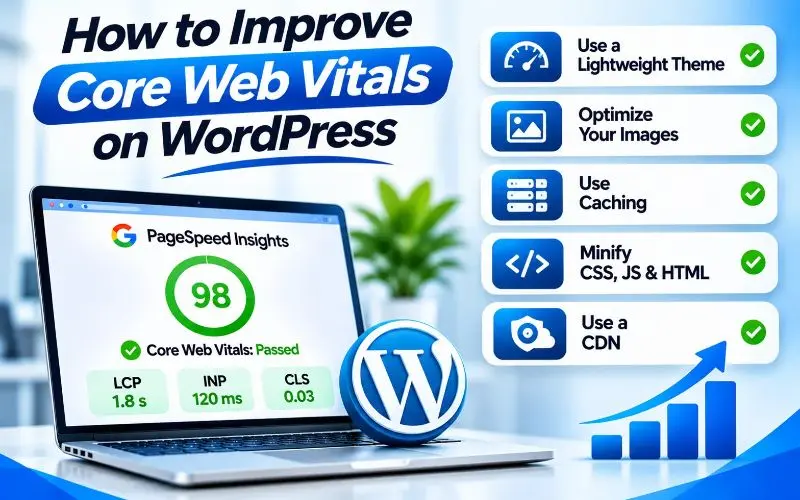
WordPress powers a huge share of business websites. It can be fast, but plugins and page builders often slow it down.
Follow this order for the best results.
- Start with hosting. Choose quality managed WordPress hosting with server caching.
- Use a lightweight theme. Avoid bloated multipurpose themes when possible.
- Add a caching plugin. Tools like WP Rocket, LiteSpeed Cache, or W3 Total Cache help significantly.
- Optimize images automatically. Use plugins that compress images and serve WebP or AVIF.
- Delay JavaScript. Many caching plugins can delay scripts until user interaction.
- Audit plugins. Remove anything unused, and replace heavy plugins with lighter options.
- Limit page builder bloat. Heavy builders add extra code and DOM elements.
- Use a CDN. Cloudflare or your host’s CDN speeds up global delivery.
Choose your SEO tools carefully too. Compare options in our list of the best WordPress SEO plugins.
How to Prioritize Core Web Vitals Fixes
You cannot fix everything at once. Focus where improvements create the most value.
Start With Templates, Not Single Pages
Most sites use a few templates, such as homepage, service pages, blog posts, and product pages. One template fix can improve hundreds of pages at once.
Search Console groups similar URLs for this reason. Fix the group, not each page.
Focus on High Value Pages First
Prioritize pages that bring traffic, leads, or sales. A faster service page often matters more than a faster old blog post.
Fix the Worst Metric First
If LCP is failing badly but INP is fine, start with LCP. Fix whichever metric moves your pages from Poor to Good fastest.
Measure, Fix, Validate
- Measure field data and identify failing templates.
- Debug with lab tools to find root causes.
- Deploy fixes and test them in Lighthouse.
- Click “Validate Fix” in Search Console.
- Wait about 28 days for field data to update.
Track results with clear SEO KPIs, including conversions, not just scores.
Common Core Web Vitals Mistakes to Avoid
These mistakes waste time and money in many audits.
- Chasing a perfect Lighthouse score instead of passing field data.
- Lazy loading the hero image.
- Ignoring mobile results and testing only on desktop.
- Adding more plugins to fix speed problems caused by plugins.
- Forgetting image dimensions on blog posts and product pages.
- Loading every third party script on every page.
- Still optimizing for First Input Delay instead of INP.
- Expecting rankings to jump immediately after fixes.
- Breaking site functionality while delaying scripts.
- Ignoring accessibility while redesigning for speed.
Speed and accessibility should improve together. Learn how to test both in our guide on how to check website accessibility.
Core Web Vitals and Your Wider Technical SEO
Core Web Vitals do not work in isolation. They connect with other technical areas.
Slow servers can also limit how many pages Google crawls. Learn more in our guide on what crawl budget is and how it impacts SEO.
Heavy JavaScript can hide content from crawlers as well as slow pages down. Watch for related crawlability problems.
Redesigns and platform changes often break performance. Always benchmark speed before and after launch using our website migration SEO checklist.
For the full picture, review our technical SEO checklist and ourcomplete SEO checklist.
Core Web Vitals for Local Businesses
Local customers often search on their phones while on the move. A slow page means a lost call or visit.
Keep your homepage, service pages, and contact page especially fast. Make your phone number load instantly and work as a clickable link.
Avoid heavy map embeds at the top of pages. Load maps lower on the page or only when visitors click.
Your website and Google Business Profile work together. Our Google Business Profile optimization services strengthen your local presence. For the full strategy, read our local SEO guide.
Service businesses can also learn how to win with AI search SEO.
Core Web Vitals Checklist
Use this checklist during your next performance review.
- Mobile and desktop field data pass in Search Console.
- Time to First Byte stays under 800 milliseconds.
- The LCP image loads early with high fetch priority.
- The LCP image is never lazy loaded.
- Images use modern formats and responsive sizes.
- Critical CSS is inlined, and non critical scripts are deferred.
- Third party scripts are audited and delayed where possible.
- Long JavaScript tasks are broken into smaller chunks.
- Event handlers give instant visual feedback.
- Images, videos, ads, and embeds have reserved space.
- Web fonts load without major layout shifts.
- The back and forward cache is not blocked.
- Fixes are validated in Search Console after deployment.
- Performance is checked after every redesign or plugin update.
When to Get Expert Help
Some Core Web Vitals fixes are simple settings. Others require developer work on code, hosting, and frameworks.
Consider expert help if your pages stay in the Poor group after basic fixes. The same applies if INP problems come from complex JavaScript or third-party tools.
At 4P Wisdom, Core Web Vitals audits are part of our technical SEO services. We analyze field data, diagnose root causes, and work with your developers. Then we track improvements in both performance and conversions.
Final Thoughts
Core Web Vitals measure what real visitors feel. Fast loading, quick responses, and stable layouts make your site easier to trust and use.
They are not a magic ranking switch. But they can break ties in competitive results and lift conversions across your site.
Start with field data. Find your failing templates, fix the slowest metric first, and validate your changes. Then monitor performance after every update.
Want to know exactly what is slowing your site down? Contact 4P Wisdom for a Core Web Vitals audit.
Frequently Asked Questions
What are good Core Web Vitals scores?
Aim for LCP of 2.5 seconds or less, INP of 200 milliseconds or less, and CLS of 0.1 or less. At least 75% of real visits should meet these targets on both mobile and desktop.
How long does it take to see Core Web Vitals improvements?
Field data uses a rolling 28-day window. After deploying fixes, expect up to four weeks before Search Console fully reflects the improvement.
Why is my Lighthouse score good but my Core Web Vitals failing?
Lighthouse runs a single simulated test under fixed conditions. Core Web Vitals use real user data from many devices and networks. Real users often face slower phones and connections.
Is INP harder to fix than LCP?
Often, yes. INP problems usually come from JavaScript, third party scripts, and frameworks. Fixing them may need developer work, while many LCP fixes involve images and hosting.
Do Core Web Vitals matter for small websites?
Yes. Small sites still serve real visitors who expect fast, stable pages. Even without page-level field data, better performance improves engagement and conversions.
Can a website rank well with poor Core Web Vitals?
Yes, if its content is highly relevant and helpful. Google prioritizes relevance first. However, poor scores can hold pages back in close competitions and reduce conversions.
Leave a Reply