What Is Crawlability?
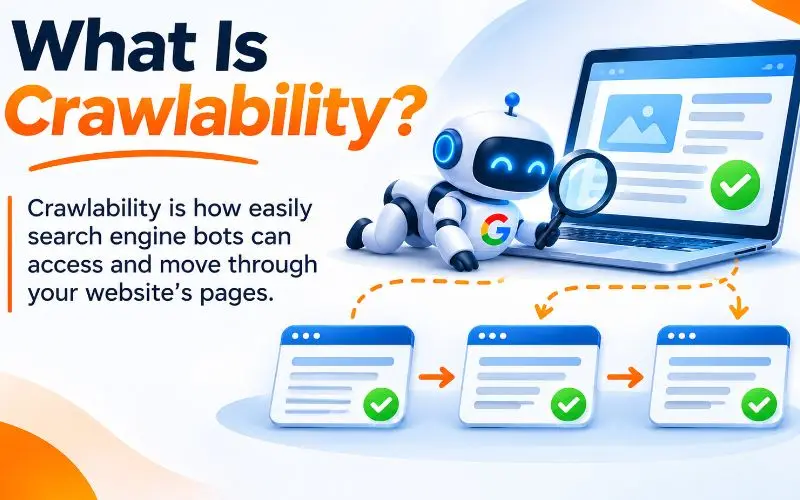
Crawlability is how easily search engine bots can access and move through your website’s pages.
Search engines like Google and Bing use automated programs called crawlers. Google’s crawler is called Googlebot. Bing’s is called Bingbot.
These bots follow links from page to page. They download each page and pass it along for processing. If something blocks or confuses them, they stop.
A crawlability issue is anything that prevents bots from reaching, loading, or following your pages.
Crawlability vs Indexability
These two terms are related, but different.
Crawlability means a bot can reach and read a page. Indexability means a search engine can store that page in its index.
A page must be crawlable before it can be indexed. But a crawlable page is not always indexable. A noindex tag, for example, allows crawling but blocks indexing.
Think of it like a job application. Crawling means your application reached the hiring manager. Indexing means they decided to keep it on file.
How Google Crawls Your Website
Google follows a clear process for every page. Understanding it helps you find where problems happen.
- Discovery. Google finds a URL through links, sitemaps, or previous crawls.
- Crawling. Googlebot requests the page from your server.
- Rendering. Google runs the page’s JavaScript to see the final content.
- Indexing. Google analyzes the content and decides whether to store it.
- Ranking. Indexed pages compete for positions in search results.
A failure at any early stage stops everything that follows. You can read Google’s own explanation in its crawling and indexing documentation.
Why Crawlability Issues Hurt Your SEO
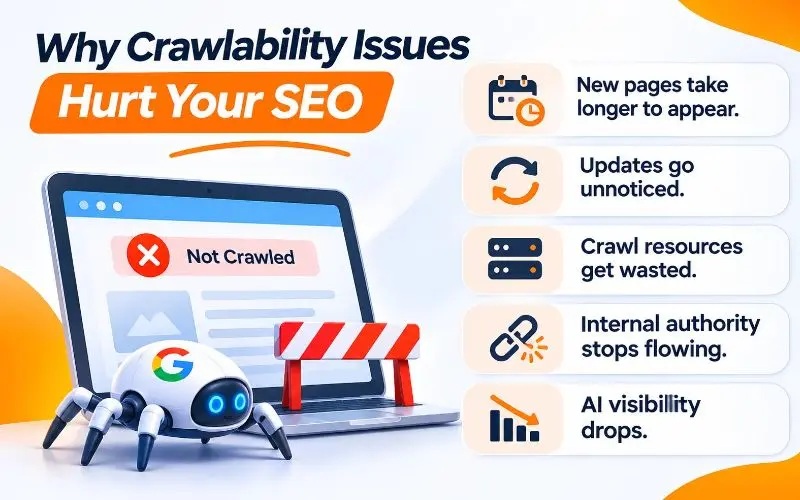
If Google cannot crawl a page, it cannot rank it. It is that simple.
But crawlability issues cause damage in quieter ways too.
- New pages take longer to appear. Fresh content sits undiscovered for weeks.
- Updates go unnoticed. Google keeps showing old prices, hours, or information.
- Crawl resources get wasted. Bots spend time on junk URLs instead of money pages.
- Internal authority stops flowing. Broken paths prevent link value from reaching key pages.
- AI visibility drops. AI search tools cannot cite pages they cannot read.
For large sites, wasted crawling also affects crawl budget. Learn more in our guide on what crawl budget is and how it impacts SEO.
Signs Your Website Has Crawlability Problems
Not sure if you have a problem? Watch for these warning signs.
- New pages take weeks to appear in Google.
- Search Console shows many “Discovered, currently not indexed” pages.
- Your indexed page count suddenly drops.
- Google shows outdated titles or descriptions for your pages.
- The Crawl Stats report shows rising errors or falling crawl requests.
- Organic traffic drops after a redesign, migration, or plugin update.
If you notice two or more of these, it is time for a crawl audit.
How to Find Crawlability Issues
Before fixing anything, you need a clear diagnosis. These tools work best together.
Google Search Console Page Indexing Report
The Pages report shows which URLs are indexed and why others are not. Look for statuses like “Blocked by robots.txt,” “Server error (5xx),” and “Not found (404).”
Filter by your submitted sitemap to focus on pages you care about.
Google Search Console Crawl Stats Report
This report is the most underused crawl tool available. Find it under Settings in Google Search Console.
It shows total crawl requests, average response time, and responses by status code. Most importantly, it shows your host status.
Host status checks three things: robots.txt fetching, DNS resolution, and server connectivity. A red warning in any area means Google struggled to reach your site.
Read Google’s Crawl Stats report guide for full details.
URL Inspection Tool
Use URL Inspection to test a single page. It shows whether Google can crawl it and how the rendered page looks.
Click “Test Live URL” to check the current version of the page.
Website Crawlers
Tools like Screaming Frog SEO Spider, Sitebulb, Semrush, and Ahrefs crawl your site like a search engine. They reveal broken links, redirects, orphan pages, and blocked resources.
Enable JavaScript rendering for modern websites. Otherwise, you may miss rendering problems.
Server Log Files
Log files record every request bots make to your server. They show what Googlebot actually does, not what tools predict.
Log analysis reveals wasted crawls, ignored pages, and error spikes. It is essential for large websites.
Bing Webmaster Tools
Bing Webmaster Tools offers its own crawl and indexing reports. Bing data also feeds several AI search tools, so do not ignore it.
18 Common Crawlability Problems and How to Fix Them
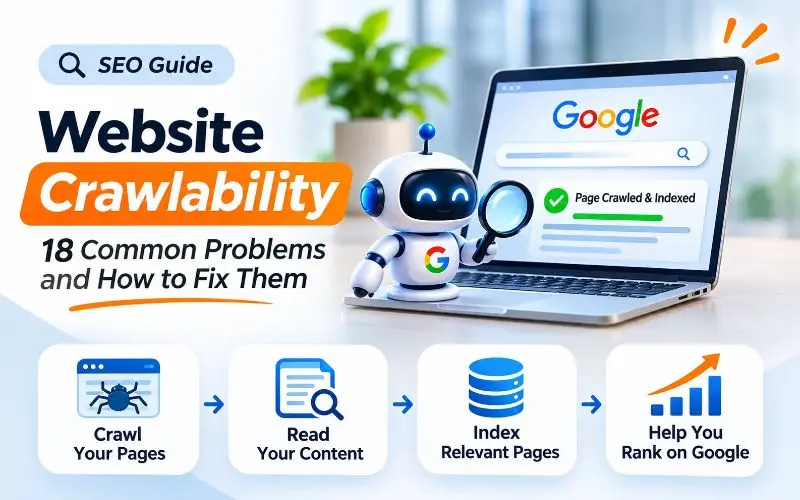
Here are the issues we find most often in technical audits. We grouped them by type, so you can work through them logically.
Access Problems: When Bots Cannot Reach Your Site
1. Robots.txt Blocking Important Pages or Resources
Your robots.txt file tells bots which areas they may visit. One wrong rule can block an entire section, or your whole website.
The most common disaster happens after launch. A staging site’s “block everything” rule accidentally goes live.
Another common mistake is blocking CSS and JavaScript files. Google needs these files to render your pages correctly.
How to find it: Check the “Blocked by robots.txt” status in the Pages report. Review your file in Search Console’s robots.txt report under Settings.
How to fix it: Remove rules that block important pages, folders, or resources. Keep blocks only for admin areas, carts, internal search, and similar low-value pages.
Remember that robots.txt rules work by groups. If Googlebot has its own group, it ignores the general group completely. Our robots.txt guide explains this and every other rule in detail.
2. Server Errors and Timeouts (5xx)
Server errors mean your server failed to respond properly. Common codes include 500, 502, 503, and 504.
When Google sees many server errors, it slows down crawling to protect your site. Persistent errors can push pages out of the index.
How to find it: Check the Crawl Stats report for 5xx responses. Look for “Server error (5xx)” in the Pages report.
How to fix it: Work with your developer or host to find the cause. Common causes include overloaded servers, plugin conflicts, database problems, and memory limits.
Upgrade cheap shared hosting if errors appear during traffic spikes. Use a content delivery network to reduce server load.
For planned maintenance, return a 503 status with a retry time. This tells Google to come back later without dropping your pages.
3. Robots.txt File Errors
This problem is different from blocking rules. Here, the robots.txt file itself fails to load properly.
If your robots.txt returns a 5xx error, Google may pause crawling your entire site. Many site owners never realize this file can cause a full crawl stop.
A 404 on robots.txt is safer. Google simply assumes there are no restrictions.
How to find it: Check the robots.txt fetch status in the Crawl Stats host status section.
How to fix it: Make sure yourdomain.com/robots.txt returns a 200 status every time. Check server rules, security plugins, and CDN settings that might interfere.
4. DNS and Connectivity Failures
Before Googlebot can request a page, it must find your server through DNS. DNS works like the internet’s phone book.
If DNS fails, Google cannot reach your site at all. Connectivity failures cause the same result.
How to find it: Look for DNS resolution or server connectivity warnings in Crawl Stats host status.
How to fix it: Use a reliable DNS provider like Cloudflare or your registrar’s premium DNS. Check that your domain has not expired. Ask your host about network outages or firewall drops.
5. Firewalls, CDNs, and Bot Protection Blocking Crawlers
Security tools protect your site from attacks. But sometimes they block good bots too.
Firewalls, CDNs, and security plugins may challenge Googlebot with CAPTCHAs or block it outright. Cloudflare, Sucuri, Wordfence, and Akamai all include bot controls that need careful setup.
This problem is growing. Many security tools now block AI crawlers by default, and some catch search bots by mistake.
How to find it: Look for 403 Forbidden errors or 429 Too Many Requests errors in crawl data. Test pages with URL Inspection. Check your firewall’s security event logs.
How to fix it: Allow verified search engine bots in your security settings. Never trust a bot just because it claims to be Googlebot. Fake bots copy that name all the time.
Verify real Googlebot with a reverse DNS lookup or Google’s published IP ranges. Read Google’s guide on verifying Googlebot.
Some malformed requests also trigger 400 errors. Our article on the 400 Bad Request error covers those causes in detail.
6. Login Walls and Access Restrictions
Googlebot cannot log in, fill forms, or enter passwords. Anything behind a login wall stays invisible.
Membership areas and account pages should stay private. The problem starts when public content accidentally sits behind restrictions.
How to find it: Crawl your site and look for 401 Unauthorized or 403 Forbidden responses. Compare them against pages you want ranked.
How to fix it: Remove restrictions from content meant for search. For paywalled content, use Google’s paywalled content structured data to show what is restricted.
Link and Structure Problems: When Bots Cannot Find Your Pages
7. Broken Internal Links (404 Errors)
Broken links point to pages that no longer exist. They create dead ends for both visitors and crawlers.
Every broken link wastes a crawl request. It also blocks link authority from reaching useful pages.
How to find it: Run a site crawl and filter for 4xx response codes. Check “Not found (404)” in the Pages report.
How to fix it: Update links to point to the correct live page. If the page was deleted, redirect its URL to the closest relevant page. If no good match exists, let the page return a 404 and remove the links to it.
8. Soft 404 Errors
A soft 404 is a page that looks empty or missing but returns a 200 “OK” status. Search engines get confused because the code says success.
Common examples include empty category pages, “no results found” pages, and thin placeholder pages.
How to find it: Look for “Soft 404” in the Pages report.
How to fix it: Return a real 404 or 410 status for pages that no longer exist. Add useful content to thin pages that should stay live. Redirect outdated pages to relevant replacements.
9. Redirect Chains and Loops
A redirect chain sends crawlers through several hops before the final page. A redirect loop sends them in circles forever.
Googlebot follows up to ten redirect hops before giving up. But every hop wastes time and weakens signals well before that limit.
How to find it: Crawl your site and check the redirect chains report. Look for “Redirect error” in Search Console.
How to fix it: Point every redirect straight to its final destination. Update internal links to skip redirects entirely. Choose the right redirect type for each situation.
Our guide on the difference between 301 and 302 redirects explains which one to use.
10. Orphan Pages
An orphan page has no internal links pointing to it. Crawlers usually discover pages through links, so orphans often stay hidden.
Orphans commonly appear after redesigns, when pages drop out of menus. Old landing pages and forgotten blog posts are frequent culprits.
How to find it: Compare your crawl results against your sitemap, analytics, and Search Console data. Pages that appear in those sources but not in the crawl are likely orphans.
How to fix it: Add contextual links from relevant pages. Include important pages in menus or hub pages. Remove or redirect orphans that no longer serve a purpose.
Our internal linking strategy guide shows how to connect every important page.
11. Poor Site Architecture and Deep Pages
Pages buried many clicks from the homepage get crawled less often. Crawlers treat deep pages as less important.
Messy architecture also confuses bots about how your content connects.
How to find it: Check click depth in your crawler. Flag important pages that sit more than three clicks deep.
How to fix it: Build a flat, logical structure. Link from your homepage to categories, then to individual pages. Group related content into topic clusters with strong hub pages.
Use breadcrumb navigation to reinforce your hierarchy. It helps both users and crawlers understand where each page sits.
12. Links Crawlers Cannot Follow
This problem hides in plain sight. Your links work for visitors, but crawlers cannot use them.
Google reliably follows only standard HTML links that use an anchor element with an href attribute. It does not click buttons or trigger JavaScript events.
Links built with onclick events, span elements, or JavaScript routing often go unseen. Google also ignores anything after a hash symbol in URLs.
How to find it: Inspect your navigation and pagination code. Compare a crawl with JavaScript rendering against one without it. Missing pages signal uncrawlable links.
How to fix it: Use real anchor links with full href URLs for all navigation. Avoid hash-based URLs for unique content. Read Google’s guide on making links crawlable.
Rendering Problems: When Bots Cannot See Your Content
13. JavaScript Rendering Issues
Many modern websites use JavaScript frameworks like React, Vue, and Angular. These sites often load content only after scripts run.
Googlebot can render JavaScript, but it takes extra time and resources. Rendering may happen later than crawling. Some content may never get processed correctly.
Most AI crawlers cannot render JavaScript at all. They see only your raw HTML.
How to find it: Use URL Inspection to view the rendered HTML. Compare it with your page source. Missing text, links, or structured data signal a rendering problem.
How to fix it: Use server-side rendering or static site generation for important content. Make sure titles, main content, links, and canonical tags appear in the initial HTML.
Our guide to JavaScript rendering for SEO explains each solution. Your website type also matters. Compare options in our guide to static vs dynamic websites.
14. Lazy Loading, Infinite Scroll, and Pagination Problems
Lazy loading delays images and content until users scroll. Infinite scroll loads more items as visitors move down the page.
Both improve speed for humans. But Googlebot does not scroll like a person. Content that needs scrolling or clicking to appear may never get crawled.
Google also stopped using the old pagination link attributes back in 2019. Many sites still rely on them.
How to find it: Use URL Inspection to check whether lazy-loaded content appears in the rendered HTML. Check whether page two and beyond have their own crawlable URLs.
How to fix it: Use native browser lazy loading or the Intersection Observer API. Give every paginated page a unique URL. Link to those pages with standard anchor links.
Follow Google’s guidance on lazy loading and pagination.
15. Mobile Content Gaps
Google uses mobile-first indexing. It mainly crawls your site with its smartphone crawler.
If your mobile version hides content, links, or structured data, Google may never see them. This often happens with collapsed menus that remove links from the code.
How to find it: Compare your mobile and desktop pages side by side. Check that both include the same main content, links, and structured data.
How to fix it: Keep content and internal links identical across devices. Use responsive design rather than a separate mobile site.
Our mobile SEO guide covers every check. Need a better mobile build? Explore our responsive web design services.
Efficiency Problems: When Bots Waste Their Time
16. Infinite Spaces, URL Parameters, and Faceted Navigation
Some websites create nearly endless URLs. Filters, sorting options, calendars, and session IDs multiply quickly.
An online store with ten filters can generate millions of URL combinations. Crawlers can get trapped exploring them instead of your real pages.
How to find it: Review your crawl for parameter-heavy URLs. Check Crawl Stats and log files for heavy crawling of filtered pages.
How to fix it: Block crawl traps like sorting and session parameters in robots.txt. Keep valuable filters, such as popular color or size pages, crawlable. Use canonical tags to consolidate similar versions.
Google retired its URL Parameters tool in 2022. Today, you must control parameters through your own site setup.
For large template-driven sites, read our programmatic SEO guide.
17. Duplicate Content Wasting Crawls
Duplicate pages force crawlers to process the same content repeatedly. This wastes resources and confuses search engines about which version to rank.
Common causes include HTTP and HTTPS versions, www and non-www versions, and trailing slash differences. Printer-friendly pages and tracking parameters add more duplicates.
How to find it: Look for “Duplicate without user selected canonical” in the Pages report. Use your crawler’s duplicate content report.
How to fix it: Choose one preferred domain version and redirect all others to it. Add canonical tags to consolidate duplicates. Learn more in our guide on what a canonical tag is.
18. Broken or Bloated XML Sitemaps
A sitemap should list only your best, indexable pages. Many sitemaps are full of redirects, errors, and noindexed URLs.
A messy sitemap sends mixed signals. It also wastes crawl attention on pages you do not want indexed.
How to find it: Check the Sitemaps report in Search Console for errors. Crawl your sitemap URLs and look for anything not returning a 200 status.
How to fix it: Remove redirects, errors, noindexed pages, and duplicates. Keep lastmod dates accurate. Split large sitemaps into smaller files by page type.
Our XML sitemap guide walks you through building a clean one.
Bonus: Noindex and Nofollow Misuse
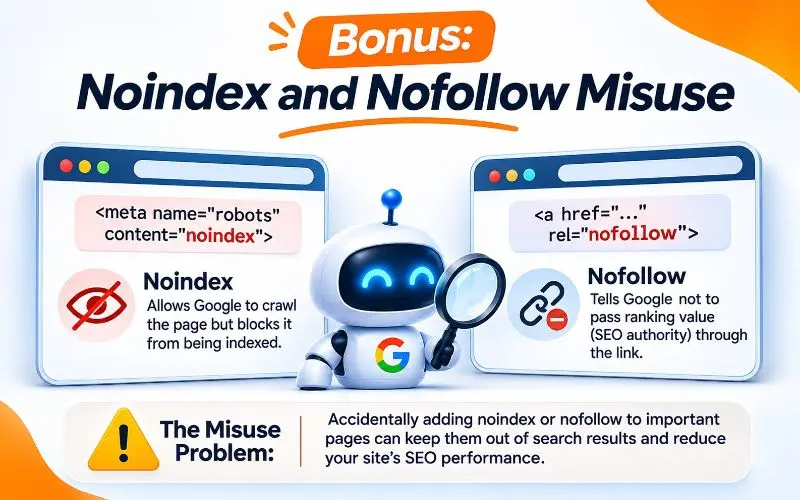
This issue deserves a special mention. It blurs the line between crawling and indexing.
A noindex tag tells Google not to index a page. Google’s John Mueller has explained that long-term noindex pages eventually get treated like nofollow. Google may stop following their links over time.
So noindexing a hub page can slowly cut off the pages it links to.
A page-level nofollow tag tells crawlers not to follow any links on the page. If added by mistake, it isolates every page linked from it.
How to fix it: Audit noindex and nofollow tags across your site. Remove them from pages you want ranked or crawled through. Never noindex important category or hub pages.
How to Prioritize Crawlability Fixes
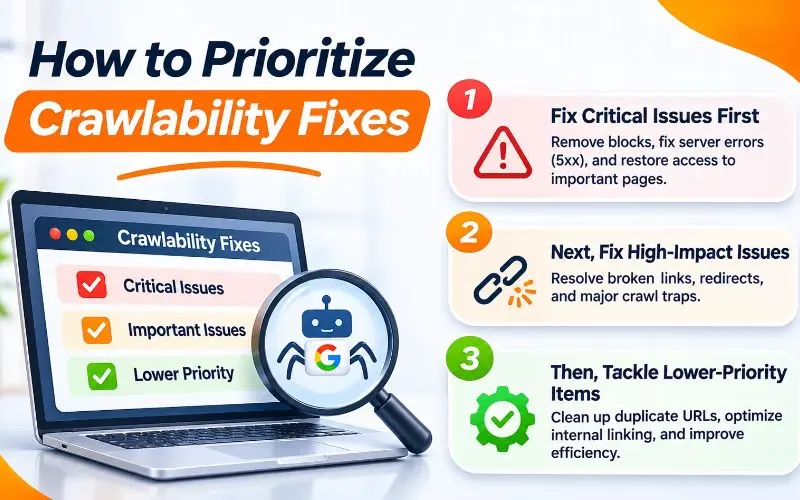
An audit may reveal hundreds of issues. Fix them in this order for the fastest results.
- Site-wide access problems first. Robots.txt errors, DNS failures, server errors, and firewall blocks affect everything.
- Money pages next. Fix any issue affecting service, product, or high converting pages.
- Template-level problems third. One template fix can repair thousands of pages.
- Efficiency issues fourth. Clean up parameters, duplicates, and sitemaps.
- Individual page issues last. Broken links on old blog posts can wait.
Always look for patterns. A single plugin setting may cause hundreds of errors.
Crawlability and AI Search in 2026

Crawlability now affects more than Google rankings. AI search tools need to read your pages before they can cite them.
AI crawlers from OpenAI, Anthropic, and Perplexity often behave differently from Googlebot. Many cannot render JavaScript. Some get blocked by default security settings.
To stay visible in AI answers:
- Serve important content in the initial HTML.
- Review firewall and CDN rules for AI bot blocks.
- Decide which AI crawlers to allow in robots.txt.
- Keep pages fast and error-free.
Google’s AI Overviews rely on Google’s standard index, so normal crawlability fixes help there too. Track progress with Search Console’s AI visibility reports.
For deeper strategy, read how to rank in Google’s AI Overviews. You may also want to learn what llms.txt is and whether it matters.
How to Prevent Crawlability Problems
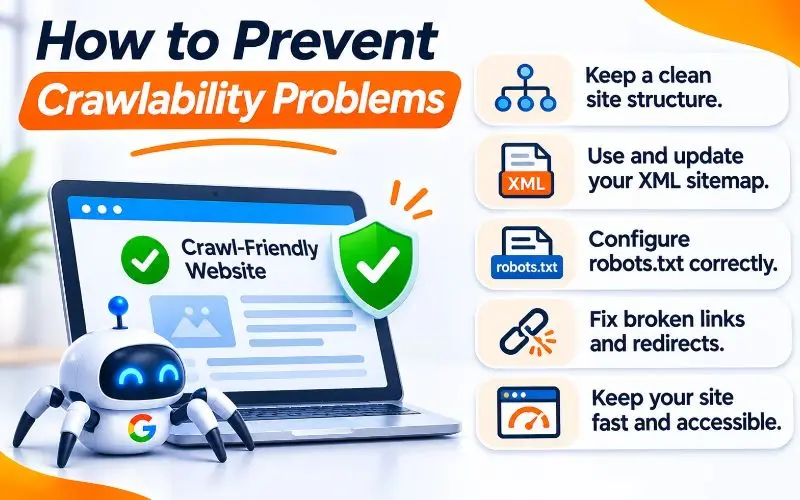
Fixing issues is good. Preventing them is better.
Audit Before Every Major Change
Redesigns, migrations, and platform changes cause the biggest crawl disasters. Crawl your site before and after every launch.
Our website migration SEO checklist covers every step. Choosing between subfolders and subdomains? Read our comparison of subdirectory vs subdomain for SEO first.
Schedule Automatic Crawls
Set up weekly crawls in Screaming Frog, Semrush, or Ahrefs. Turn on email alerts for new errors.
Monitor Search Console Weekly
Check the Pages and Crawl Stats reports regularly. Sudden changes usually signal a new problem.
Keep Your Server Fast and Healthy
Fast servers let Googlebot crawl more pages in less time. Aim for quick, consistent response times. Strong Core Web Vitals also improve user experience. Learn more in our Core Web Vitals guide.
Return 304 Status Codes for Unchanged Pages
A 304 Not Modified response tells crawlers a page has not changed. This saves resources for both your server and Googlebot. Learn why Google recommends 304 status codes.
Choose Plugins Carefully
On WordPress, plugins can quietly add noindex tags, redirects, or blocking rules. Choose trusted tools from our list of the best WordPress SEO plugins.
Crawlability Tips for Local Businesses
Local business websites are usually small. But crawl problems still cost them calls and customers.
Make sure every location page and service page is linked from your main navigation. Avoid hiding service areas inside JavaScript tabs or popups.
Keep your contact page crawlable, with your address and phone number in plain HTML. These details should match your Google Business Profile exactly.
Our Google Business Profile optimization services keep your local information consistent everywhere. For the full strategy, see ourlocal SEO guide.
Crawlability Audit Checklist
Use this quick checklist during your next review.
- Robots.txt loads with a 200 status and blocks nothing important.
- Crawl Stats host status shows no warnings.
- No important pages return 4xx or 5xx errors.
- Firewalls and CDNs allow verified search engine bots.
- Redirects point directly to final URLs.
- Every important page has internal links pointing to it.
- Key pages sit within three clicks of the homepage.
- Navigation uses standard HTML anchor links.
- Important content appears in the initial HTML.
- Paginated pages have unique, crawlable URLs.
- Mobile and desktop versions share the same content and links.
- Parameters and filters do not create crawl traps.
- Your XML sitemap lists only clean, indexable URLs.
- No important pages carry noindex or nofollow tags by mistake.
Crawlability is just one part of technical health. See every other task in our technical SEO checklist and our complete SEO checklist.
When to Get Expert Help
Some crawl issues are quick fixes. Others need deep technical investigation.
Consider expert help if traffic dropped suddenly without explanation. The same goes for JavaScript sites, large ecommerce catalogs, or recent migrations.
At 4P Wisdom, crawl audits are a core part of our SEO services. We analyze crawl data, server logs, and rendering. Then we fix issues by business impact and track progress with clear SEO KPIs.
Final Thoughts
Crawlability is the first gate every page must pass. If search engines cannot reach your content, nothing else matters.
Start with site-wide access problems. Then fix broken paths, hidden links, and rendering gaps. Finally, clean up wasteful URLs so bots focus on your best pages.
Check Search Console weekly, crawl your site regularly, and audit before every launch. Small habits prevent big traffic losses.
Want a professional crawl audit? Contact 4P Wisdom and let our team find what is blocking your pages.
Frequently Asked Questions
What are crawlability issues in SEO?
Crawlability issues are problems that stop search engine bots from accessing or following your pages. Common examples include robots.txt blocks, server errors, broken links, and orphan pages. They prevent pages from being indexed and ranked.
How do I check if Google can crawl my website?
Use the URL Inspection tool in Google Search Console to test individual pages. Then review the Pages and Crawl Stats reports for site wide problems. A crawler like Screaming Frog adds a full technical view.
What is the difference between crawlability and indexability?
Crawlability means bots can reach and read a page. Indexability means search engines can store it in their index. A page must be crawlable first, but crawlable pages are not always indexed.
How long does it take Google to recrawl a fixed page?
It can take a few days to several weeks. Popular, frequently updated pages get recrawled faster. You can request indexing for important pages through URL Inspection.
Can slow page speed cause crawlability issues?
Yes. Slow server responses limit how many pages Googlebot can crawl in each visit. Persistent slowness or timeouts can also cause Google to reduce its crawl rate.
Do crawlability issues affect AI search visibility?
Yes. AI tools must read your pages before they can cite them. JavaScript-only content, firewall blocks, and server errors can keep your site out of AI answers.
Leave a Reply