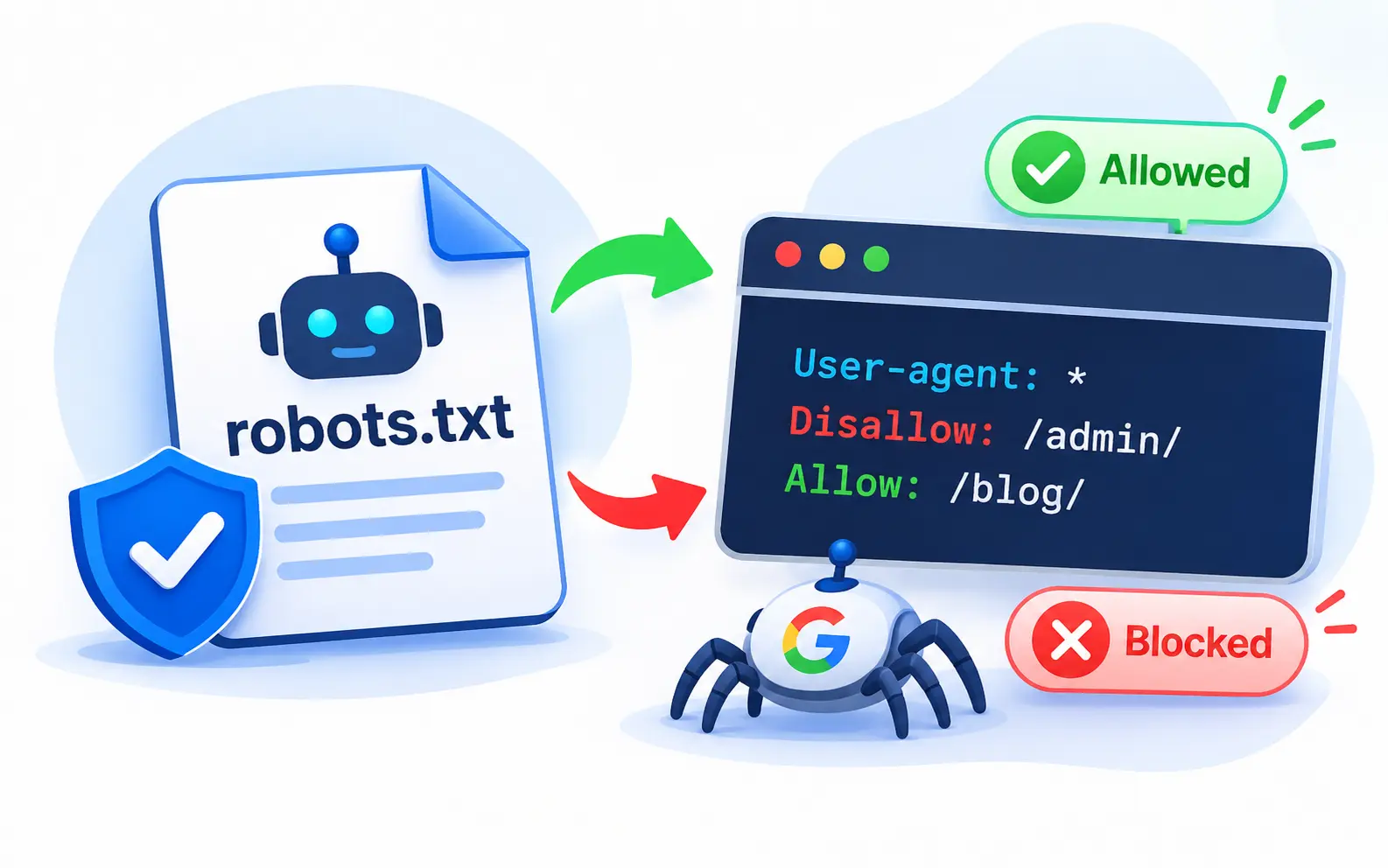
One tiny text file can hide your entire website from Google.
It happens more often than you think. A developer launches a new site and forgets one line. Traffic drops to zero overnight. The culprit is a two-line robots.txt file.
Used correctly, robots.txt is a powerful tool. It guides search engine crawlers toward your best content. It keeps them away from pages that waste their time. In 2026, it also decides which AI bots can read your website.
In this guide, the SEO team at 4P Wisdom explains robots.txt in plain English. You will learn how it works and how to create one. You will see real examples, AI crawler rules, and the mistakes that cost businesses traffic.
What Is a Robots.txt File?
A robots.txt file is a plain text file that tells crawlers which parts of your site they may visit. It lives in your website’s root folder, at yourdomain.com/robots.txt.
Crawlers like Googlebot and Bingbot check this file before crawling your pages. They read its rules, then decide where to go.
Think of robots.txt as a sign at the entrance of a building. It says which rooms visitors may enter and which are staff only. Polite visitors follow the sign. Rude visitors ignore it.
That last point matters. Robots.txt is a request, not a lock. Trusted search engines respect it. Malicious bots and scrapers often do not.
A Short History of Robots.txt
The Robots Exclusion Protocol was created by Martijn Koster in 1994. For 25 years, it worked as an informal agreement between websites and crawlers.
In 2019, Google pushed to make it an official internet standard. Google also released its own robots.txt parser as open-source code on GitHub.
In September 2022, the Internet Engineering Task Force published it as RFC 9309. Today, every major search engine follows this shared standard.
Why Robots.txt Matters for SEO
Robots.txt affects how search engines spend their time on your site. Here is why that matters.
- It protects your crawl budget. Crawlers spend less time on low-value pages and more on important ones.
- It prevents crawl traps. Endless filter combinations and calendar pages can swallow crawler attention.
- It reduces server load. Fewer wasted bot requests mean a faster, more stable website.
- It points crawlers to your sitemap. One line helps every search engine find your XML sitemap.
- It controls AI crawler access. You can decide which AI companies may collect your content.
Crawl budget mostly matters for large sites. Learn more in our guide on what crawl budget is and how it impacts SEO.
How Does Robots.txt Work?
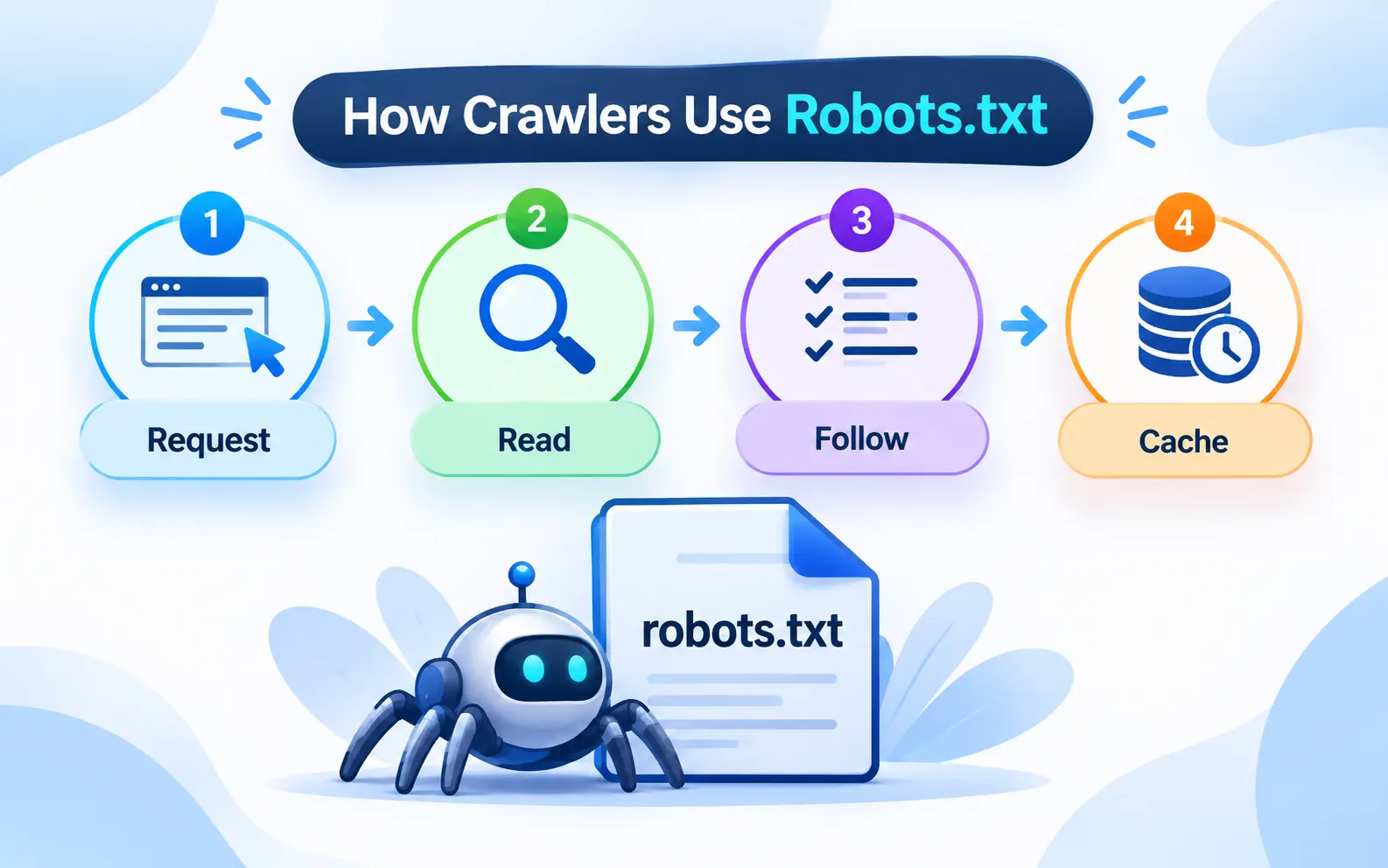
Here is what happens when a crawler visits your website.
- The crawler requests yourdomain.com/robots.txt before anything else.
- It reads the file and finds the group of rules that matches its name.
- It follows those rules while crawling your pages.
- It caches the file and checks it again later.
Google usually caches your robots.txt file for up to 24 hours. So changes may take a day to take effect.
Robots.txt Controls Crawling, Not Indexing
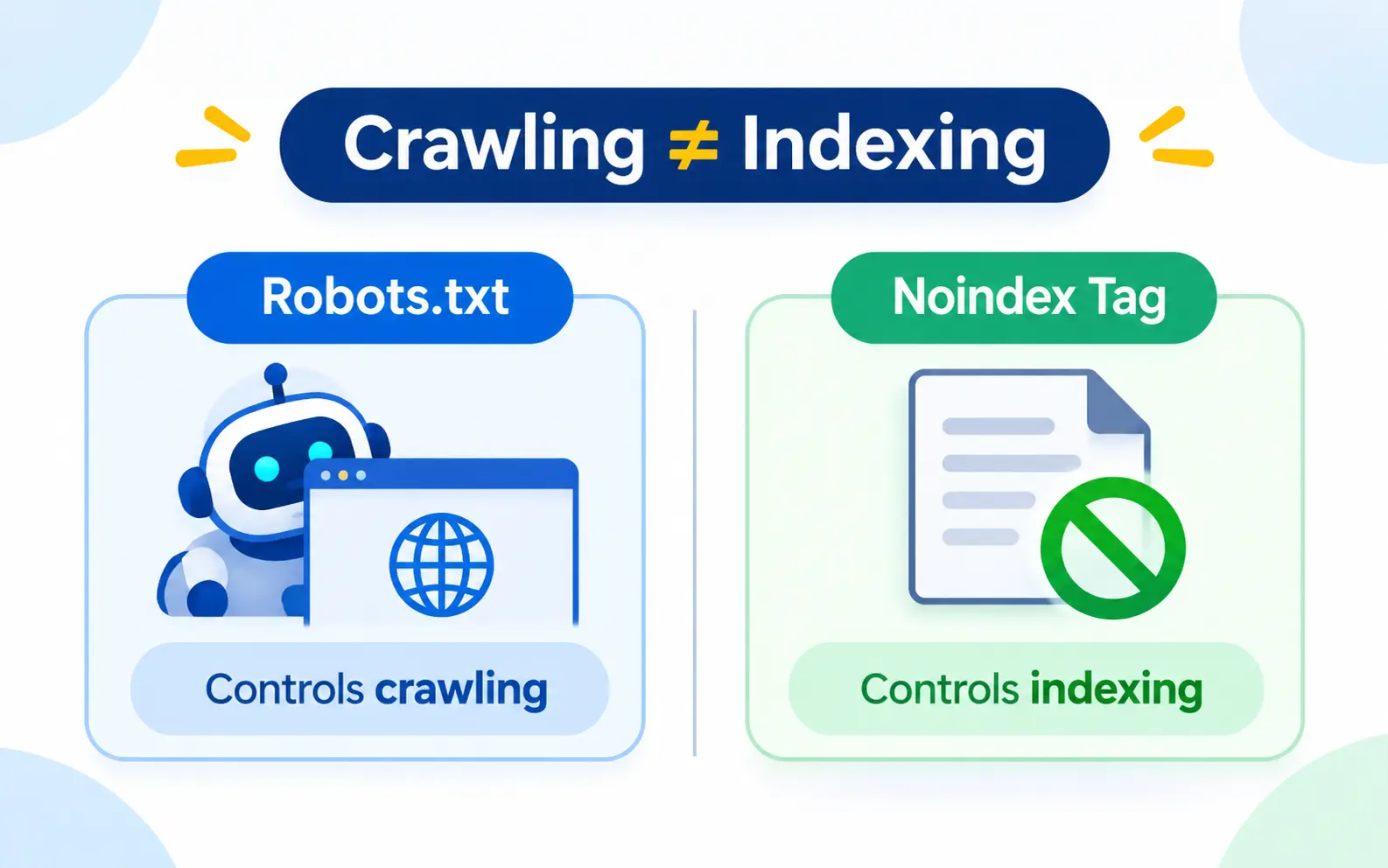
This is the most misunderstood fact about robots.txt.
Blocking a page stops Google from crawling it. It does not stop Google from indexing it.
If other websites link to a blocked page, Google may still index the URL. It will appear in search with no description. Search Console labels these pages “Indexed, though blocked by robots.txt.”
Want a page out of search results? Use a noindex meta tag instead. And make sure robots.txt does not block that page. Google must crawl the page to see the noindex tag.
Where Does the Robots.txt File Live?
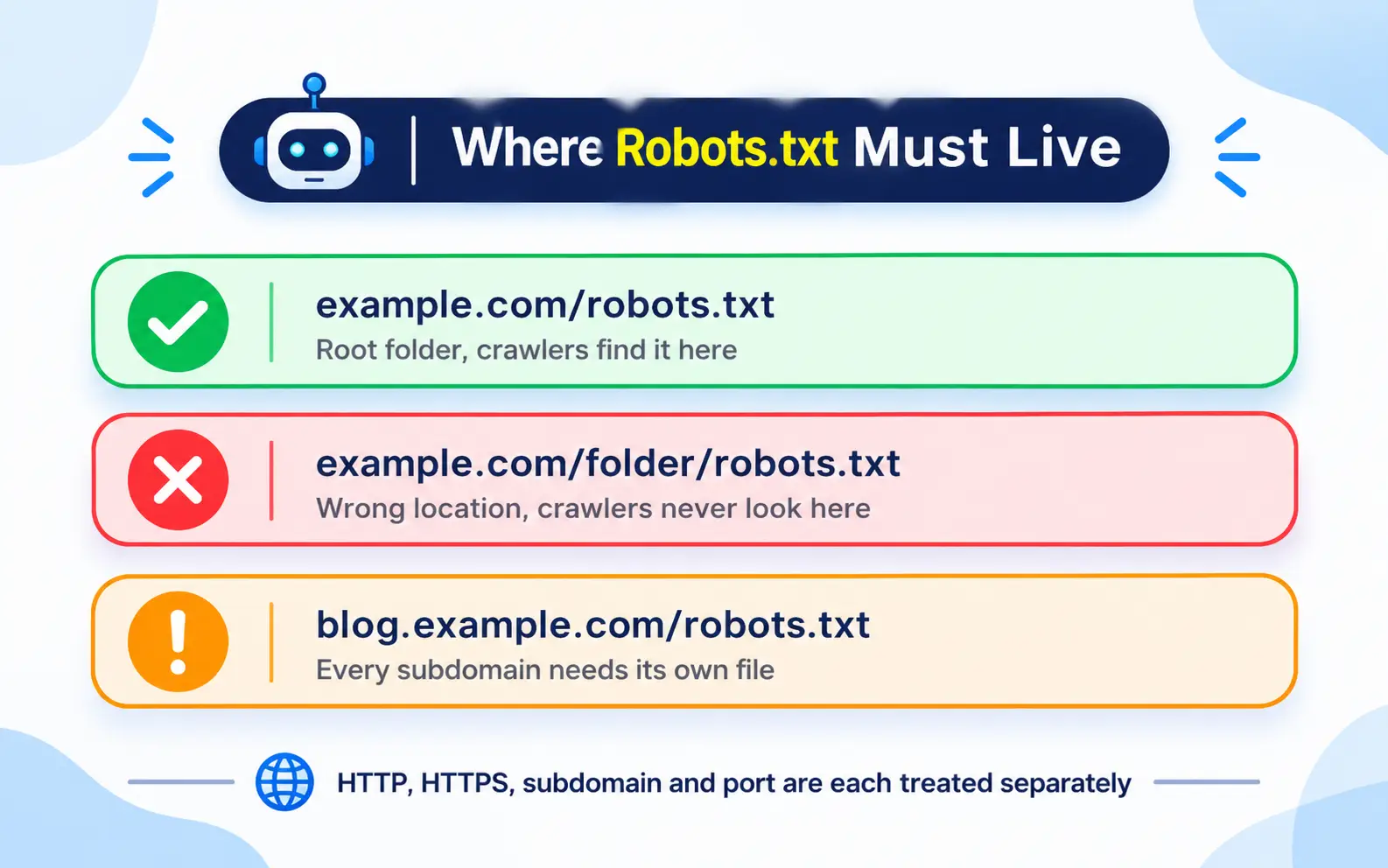
Your robots.txt file must sit in the root folder of your domain. Crawlers only look in one place.
This works: example.com/robots.txt
This does not work: https://www.example.com/folder/robots.txt
Each host also needs its own file. A robots.txt file applies only to the exact protocol, subdomain, and port it lives on.
That means blog.example.com needs its own robots.txt file. So does shop.example.com. The HTTP and HTTPS versions of a site are also treated separately.
This often surprises businesses that use subdomains. Our comparison of subdirectory vs subdomain for SEO explains why this affects your strategy.
Robots.txt Syntax Explained
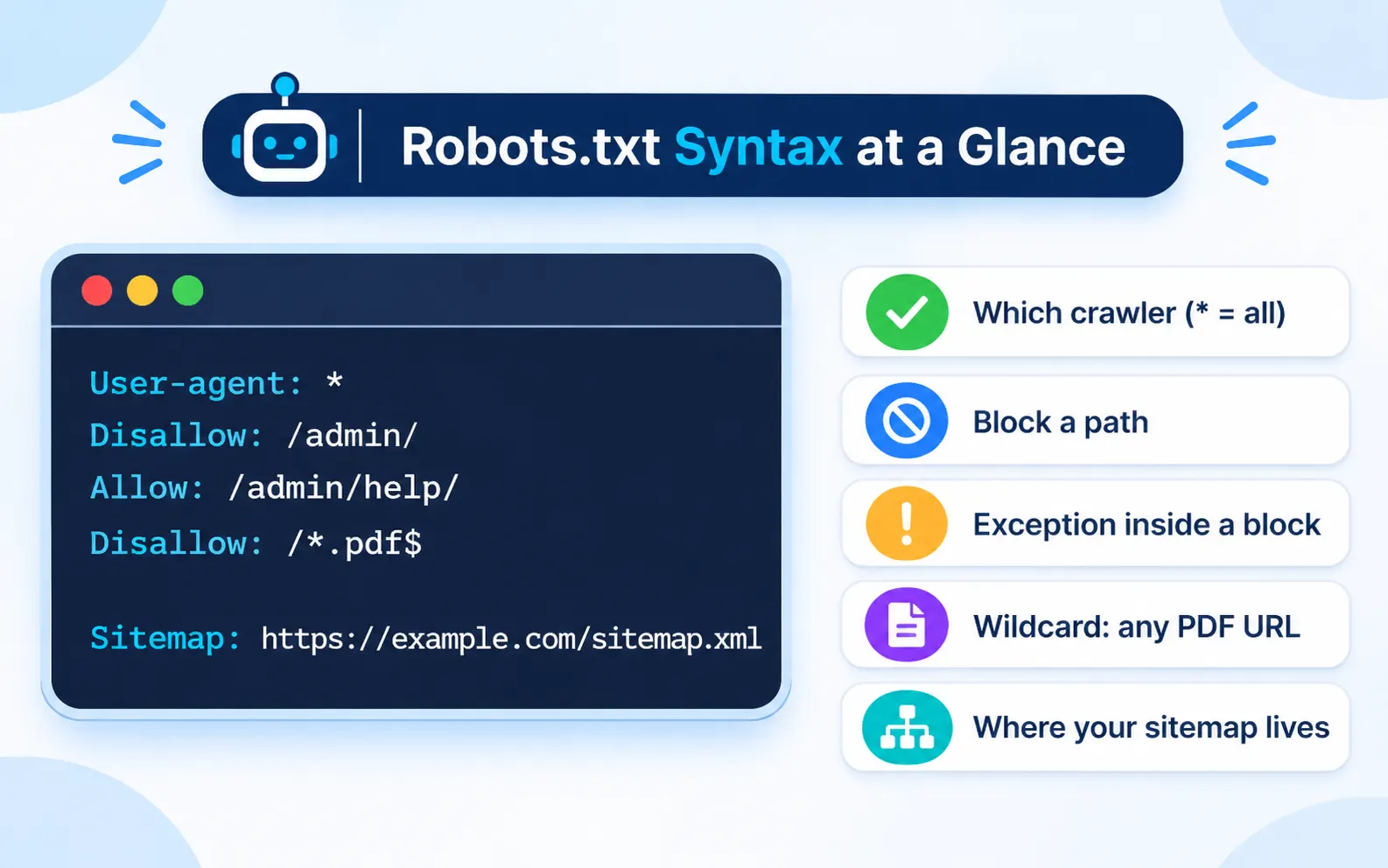
A robots.txt file is made of groups. Each group starts with a user agent line, followed by rules.
Here is a simple example:
User-agent: *
Disallow: /admin/
Disallow: /cart/
Sitemap: https://www.example.com/sitemap.xml
This file tells every crawler to stay out of the admin and cart folders. It also points them to the sitemap.
Let’s break down each directive.
The User Agent Line
The user agent line names the crawler group it applies to. Every group must start with one.
An asterisk means “all crawlers.” A specific name like Googlebot targets only that crawler.
User-agent: Googlebot
Disallow: /private/
Google runs many crawlers for different jobs. See the full list in Google’s crawler documentation.
The Disallow Directive
Disallow tells a crawler not to visit a path. The path starts after your domain.
Disallow: /checkout/
An empty Disallow line means nothing is blocked. A single slash blocks the entire website.
Disallow: /
Be very careful with that single slash. It is the most dangerous character in SEO.
The Allow Directive
Allow creates an exception inside a blocked folder. Google, Bing, and most major engines support it.
User-agent: *
Disallow: /media/
Allow: /media/public/
Here, crawlers skip the media folder, except for the public section inside it.
The Sitemap Directive
The Sitemap directive tells crawlers where your XML sitemap lives. It must use a full, absolute URL.
Sitemap: https://www.example.com/sitemap.xml
You can list several sitemaps, one per line. This line can sit anywhere in the file. Learn how to build a clean one in our XML sitemap guide.
Comments
Lines that start with a hash symbol are comments. Crawlers ignore them, but your team will thank you.
# Block internal search results
Disallow: /search/
Use comments to explain why each rule exists. This prevents accidental deletions during future updates.
Wildcards: The Asterisk and the Dollar Sign
Google and Bing support two special characters for pattern matching.
The asterisk matches any sequence of characters. The dollar sign marks the end of a URL.
User-agent: *
Disallow: /*?sort=
Disallow: /*.pdf$
The first rule blocks any URL containing a sort parameter. The second blocks every URL ending in .pdf.
Wildcards are powerful but risky. One broad pattern can block thousands of important pages.
Unsupported Robots.txt Rules You Should Stop Using
Many websites still use rules that Google ignores. They give a false sense of control.
Noindex in Robots.txt
Google stopped supporting noindex rules in robots.txt on September 1, 2019. They do nothing today.
Use a noindex meta tag or an X-Robots-Tag HTTP header instead.
Crawl Delay
Crawl delay asks bots to wait between requests. Bing and Yandex support it. Google ignores it completely.
Google adjusts its crawl rate automatically based on your server’s health. If Googlebot overloads your server, return 503 or 429 status codes temporarily.
Nofollow in Robots.txt
Nofollow rules in robots.txt were never officially supported by Google. Use link attributes on the page instead.
How Google Reads Your Robots.txt Rules
These details separate experts from beginners. They also explain many mysterious crawling problems.
Googlebot Follows Only One Group
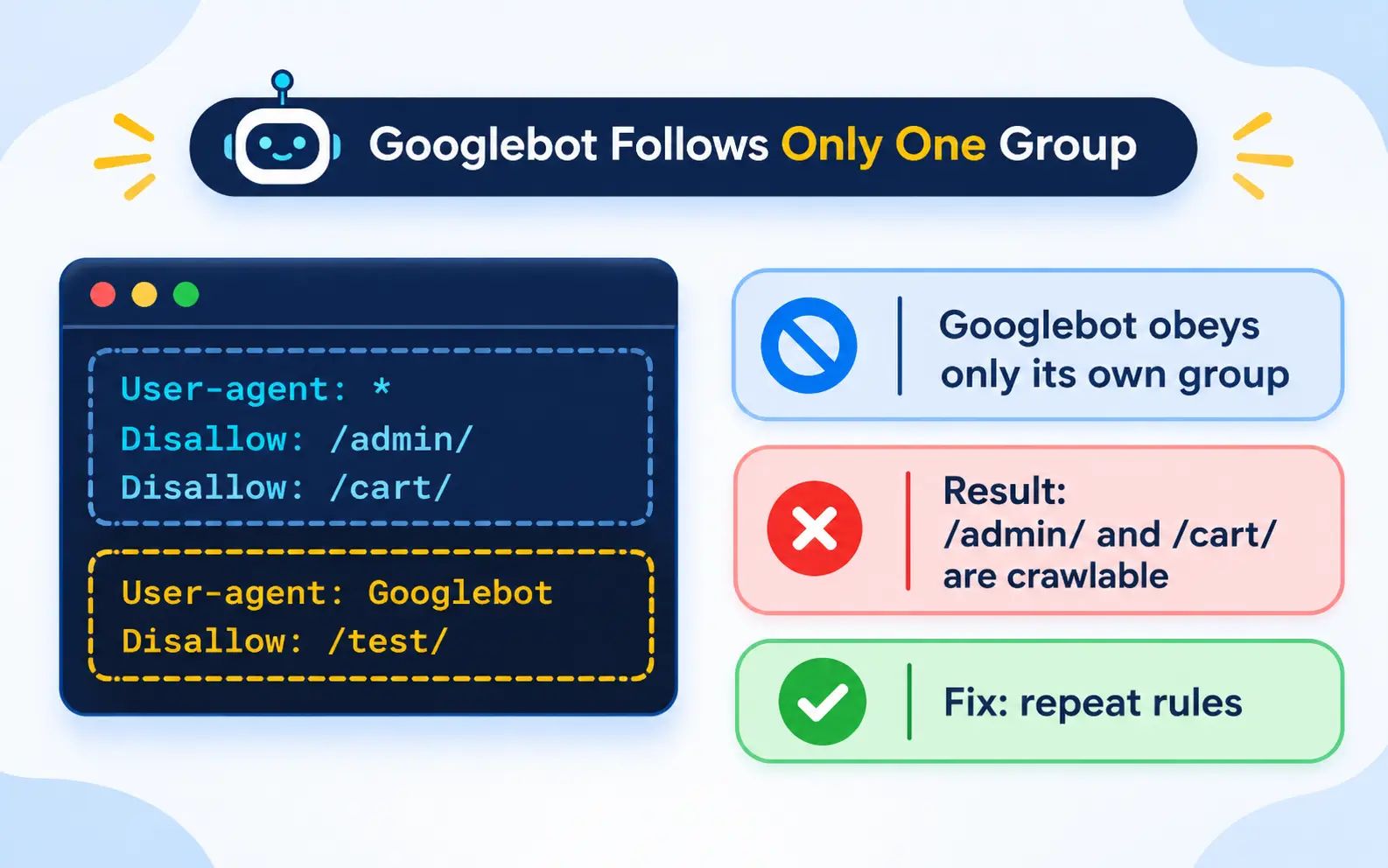
A crawler obeys only the single group that best matches its name. It ignores every other group.
Look at this example:
User-agent: *
Disallow: /admin/
Disallow: /cart/
User-agent: Googlebot
Disallow: /test/
Many people assume Googlebot follows all three rules. It does not.
Googlebot finds its own named group and follows only that one. It ignores the asterisk group completely. So Googlebot can crawl your admin and cart folders.
To fix this, repeat the shared rules inside the Googlebot group.
The Most Specific Rule Wins
When Allow and Disallow rules conflict, Google follows the most specific one. Specific means the rule with the longest matching path.
Disallow: /blog/
Allow: /blog/robots-guide/
Here, Google can crawl the robots guide because that Allow rule is longer. If two rules are equally specific, Google picks the less restrictive one.
Paths Are Case Sensitive
Directive names like Disallow are not case sensitive. But the paths inside them are.
So /Admin/ and /admin/ are different paths. Match the exact case your URLs use.
File Size and Format Limits
Google reads only the first 500 KiB of a robots.txt file. Anything beyond that limit is ignored.
The file must be plain text with UTF 8 encoding. It must be named robots.txt in lowercase.
What Happens When Robots.txt Returns an Error
How your server responds to the robots.txt request matters a lot.
- A 200 status means Google reads and follows the file.
- A 404 or other 4xx status means Google assumes no restrictions and crawls everything.
- A 5xx server error or 429 status makes Google pause crawling your whole site temporarily.
If server errors continue for more than 30 days, Google may fall back to its last cached copy. A broken robots.txt server response can stall crawling across your entire website.
Our guides on common crawlability problems and the 400 Bad Request error cover these server issues in detail.
Read the complete rules in Google’s robots.txt specification.
What Should You Block With Robots.txt?
Block pages that waste crawler attention and offer no search value. Here are common examples.
- Admin and login areas.
- Cart, checkout, and account pages.
- Internal site search results.
- Faceted navigation and filter combinations.
- Sorting and tracking parameters.
- Staging or test folders on live domains.
- Endless calendar or archive pages.
What Should You Never Block?
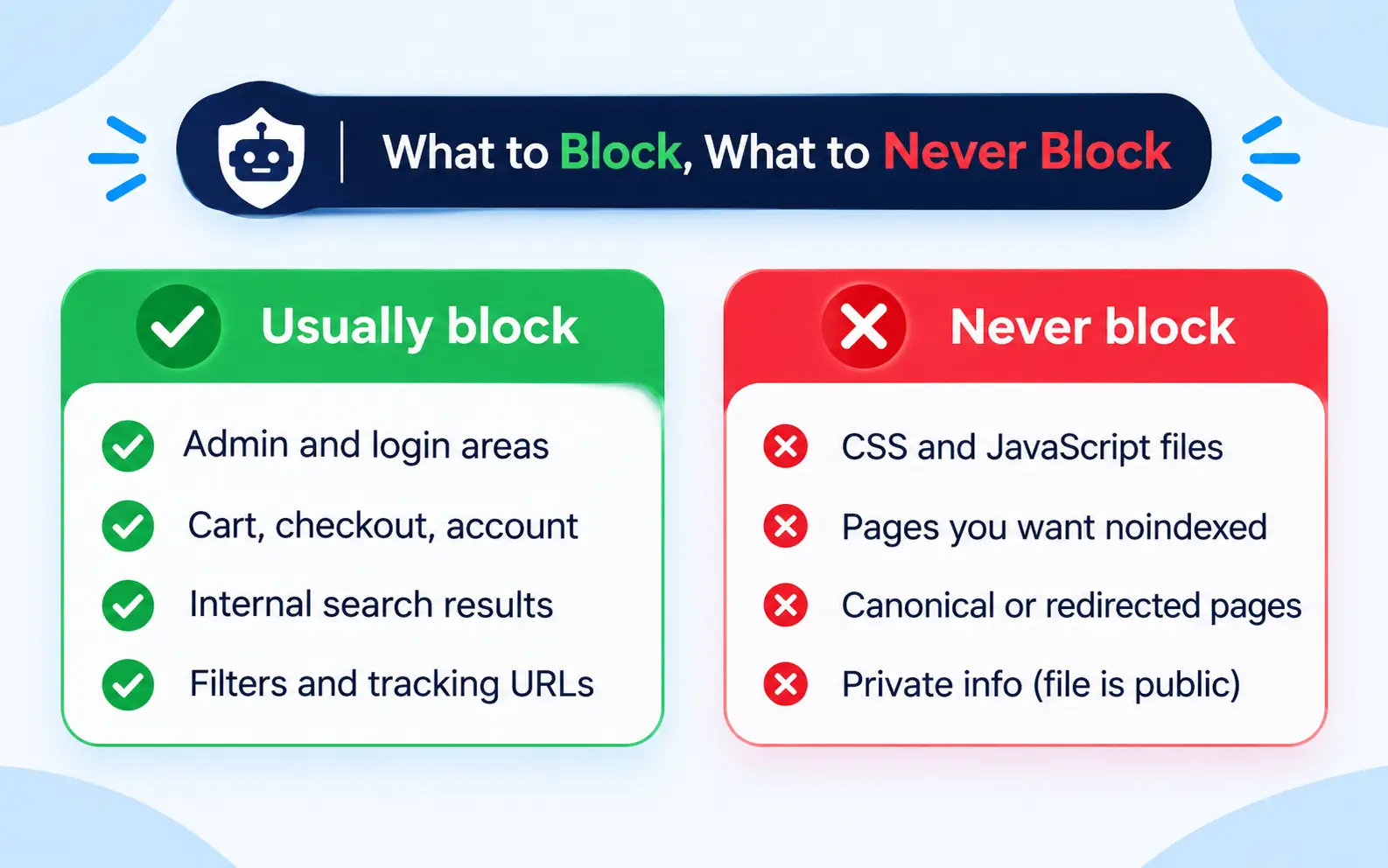
Some blocks can seriously damage your rankings. Avoid these mistakes.
Never Block CSS and JavaScript Files
Google renders pages like a modern browser. It needs your CSS and JavaScript files to see your layout and content.
Blocking these files can make your pages look broken to Google. This hurts mobile usability and rankings. Our guide to JavaScript rendering for SEO explains why rendering matters.
Never Block Pages You Want Removed From Search
Remember, blocked pages cannot show their noindex tag. Let Google crawl them, then use noindex.
Never Block Canonical or Redirected Pages
Google needs to crawl a page to see its canonical tag or redirect. Blocking it hides those signals. Learn more in our guide on canonical tags.
Never Use Robots.txt to Hide Sensitive Information
Your robots.txt file is public. Anyone can read it, including hackers.
Listing a secret admin folder actually advertises its location. Protect sensitive areas with passwords and server authentication instead.
How to Create a Robots.txt File
Creating a robots.txt file takes only a few minutes. Follow these steps.
Step 1: Check if You Already Have One
Type yourdomain.com/robots.txt into your browser. Most websites already have a file.
If you see rules, review them carefully before changing anything. If you get a 404 error, you need to create one.
Step 2: Create a Plain Text File
Open a simple text editor like Notepad on Windows or TextEdit on Mac. Avoid word processors, because they add hidden formatting.
Save the file as robots.txt with UTF-8 encoding.
Step 3: Write Your Rules
Start simple. Most small business websites need only a few lines.
User-agent: *
Disallow: /admin/
Disallow: /search/
Sitemap: https://www.example.com/sitemap.xml
Add specific groups only when a crawler needs different rules.
Step 4: Upload It to Your Root Folder
Upload the file to the top-level folder of your website. Use your hosting file manager or an FTP tool like FileZilla.
Then visit yourdomain.com/robots.txt to confirm it loads correctly.
Step 5: Test Before and After Publishing
Check the file with Google’s robots.txt report and a crawler like Screaming Frog. We cover testing in detail below.
How to Edit Robots.txt on Popular Platforms
Most website platforms handle robots.txt differently. Here is how the main ones work.
WordPress
WordPress creates a virtual robots.txt file automatically. By default, it blocks the admin area but allows one essential admin file.
Since WordPress 5.5, the default file also includes your sitemap location.
To customize it, use an SEO plugin like Yoast SEO, Rank Math, or All in One SEO. Each includes a simple robots.txt editor. Compare your options in our list of the best WordPress SEO plugins.
A typical WordPress robots.txt looks like this:
User-agent: *
Disallow: /wp-admin/
Allow: /wp-admin/admin-ajax.php
Sitemap: https://www.example.com/sitemap_index.xml
Shopify
Shopify generates a default robots.txt file for every store. Since June 2021, you can customize it by editing a template file in your theme.
Shopify’s default rules already block cart, checkout, and account pages. Edit carefully, because mistakes can block product pages.
Wix and Squarespace
Wix includes a built-in robots.txt editor in its SEO settings. Squarespace generates the file automatically and offers limited editing.
Next.js and Custom Websites
Next.js can generate robots.txt automatically from code using a special robots file in the app folder. Other frameworks like Django and Laravel support similar approaches.
Custom websites can serve a static file from the root folder. Ask your developer to keep it in version control.
Robots.txt Examples for Common Situations
Here are ready-to-use templates. Always adapt them to your own URL structure.
Allow Everything
User-agent: *
Disallow:
Sitemap: https://www.example.com/sitemap.xml
This is the safest choice for most small websites.
Block Everything (Staging Sites Only)
User-agent: *
Disallow: /
Use this only on staging or development sites. Never copy it to your live site.
Also protect staging sites with a password. Robots.txt alone will not keep them out of search.
Ecommerce Store
User-agent: *
Disallow: /cart/
Disallow: /checkout/
Disallow: /account/
Disallow: /*?sort=
Disallow: /*?filter=
Sitemap: https://www.example.com/sitemap.xml
This keeps crawlers away from transactional pages and endless filter combinations.
Block Internal Search Results
User-agent: *
Disallow: /search/
Disallow: /*?s=
Internal search pages create thin, duplicate content. Blocking them saves crawl resources.
Block a Specific File Type
User-agent: *
Disallow: /*.pdf$
This blocks PDF files that duplicate your HTML pages.
Robots.txt and AI Crawlers in 2026
AI companies now send their own crawlers across the web. Robots.txt is the main way to control them.
Training Crawlers vs Search Crawlers
Not all AI bots do the same job. Understanding the difference helps you make smart choices.
Training crawlers collect content to train AI models. OpenAI’s GPTBot, Anthropic’s ClaudeBot, and Common Crawl’s CCBot are examples.
Search and retrieval crawlers fetch pages to answer questions in real time. They can send visitors and citations back to your site. OpenAI, Anthropic, and Perplexity each run separate bots for this job.
Control tokens let you opt out of AI training without affecting search. Google offers a dedicated token for Gemini training. Blocking it does not remove you from Google Search or AI Overviews. Apple offers a similar token for its AI models.
Each company documents its bots publicly. For example, see OpenAI’s crawler documentation.
A Balanced AI Crawler Setup
Many businesses want AI search visibility but prefer to limit training. Here is one balanced approach.
# Allow AI search and retrieval
User-agent: OAI-SearchBot
Allow: /
User-agent: PerplexityBot
Allow: /
# Block AI model training
User-agent: GPTBot
Disallow: /
User-agent: CCBot
Disallow: /
User-agent: Google-Extended
Disallow: /
There is no single right answer here. Publishers protecting premium content may block more. Local service businesses usually benefit from allowing more.
Think about your goals carefully. Blocking AI search bots may cost you citations in AI answers. Read how service businesses can win with AI search SEO before deciding.
Check Your CDN and Firewall Settings
Robots.txt is not the only gatekeeper. Your CDN or firewall may block AI bots before they ever read the file.
Cloudflare, for example, offers settings that block AI crawlers. It began blocking many AI crawlers by default for new sites in 2025. Check these settings so your firewall matches your robots.txt policy.
You can track AI visibility in Search Console’s new AI visibility reports.
Robots.txt vs llms.txt
You may have heard of llms.txt, a newer proposed file for AI tools. The two files do different jobs.
Robots.txt controls access. Llms.txt suggests which content AI tools should read first. Google has said it does not use llms.txt today.
Learn more in our guide on what llms.txt is.
Robots.txt vs Meta Robots vs X Robots Tag
These three tools are often confused. Each controls something different.
Robots.txt controls crawling across folders and URL patterns. It works at the site level.
The meta robots tag controls indexing for a single HTML page. It sits in the page’s head section and supports values like noindex and nofollow.
The X-Robots-Tag sends the same instructions through an HTTP header. It works for non-HTML files like PDFs and images.
Use robots.txt to manage crawl efficiency. Use meta robots or the X Robots Tag to manage indexing.
How to Test and Validate Your Robots.txt File
Testing protects you from costly mistakes. Never publish changes without checking them.
Google Search Console Robots.txt Report
Google retired its old robots.txt Tester in December 2023. It replaced it with the robots.txt report.
Find it under Settings in Google Search Console. The report shows:
- Which robots.txt files Google found for your top hosts.
- When Google last crawled each file.
- Any warnings or parsing errors.
- Previous versions fetched in the last 30 days.
After important fixes, you can request a recrawl of the file from this report. Read Google’s robots.txt report guide for full details.
URL Inspection Tool
Use URL Inspection to check whether a specific page is blocked. It tells you if crawling is allowed for that URL.
Bing Webmaster Tools
Bing Webmaster Tools includes its own robots.txt tester. Use it to check how Bingbot reads your rules.
Third Party Crawlers
Screaming Frog SEO Spider can test rules against your full list of URLs. Semrush and Ahrefs site audits also flag blocked pages.
You can also check Google’s open-source parser for exact Googlebot behavior. Developers find it useful for automated testing.
Common Robots.txt Mistakes That Hurt SEO
These mistakes appear in audits again and again. Check your file for each one.
- Blocking the whole site after launch. A staging file with a single slash goes live by accident.
- Assuming groups combine. Googlebot ignores the asterisk group when its own group exists.
- Blocking CSS and JavaScript. Google cannot render your pages properly.
- Using robots.txt to remove pages. Blocked pages can still appear in search.
- Relying on noindex in robots.txt. Google ignored it starting in 2019.
- Wrong file location. Robots.txt only works in the root folder.
- Forgetting subdomains. Each subdomain needs its own file.
- Overly broad wildcards. One pattern blocks thousands of valuable URLs.
- Case mismatches. Paths must match your real URL capitalization.
- Listing sensitive folders. Your file is public for everyone to read.
Robots.txt During Website Migrations
Migrations are the riskiest moment for robots.txt. Staging sites usually block everything. That file sometimes travels to the live site.
Before launch, compare your staging and production robots.txt files. Remove any full site block. Then check the live file within minutes of launch.
Keep crawl access open for old URLs that now redirect. Google must crawl them to discover the redirects. Our guide on the difference between 301 and 302 redirects explains which redirect to use.
For every step, follow our website migration SEO checklist.
Robots.txt Tips for Large and Programmatic Websites
Large websites gain the most from smart robots.txt rules. Faceted navigation alone can create millions of crawlable URLs.
Use robots.txt to block filter combinations that offer no unique value. Keep your main category and product pages fully crawlable.
Analyze server logs to see where Googlebot spends its time. Then adjust your rules based on real data. Returning 304 status codes for unchanged pages also helps. Learn why Google recommends 304 status codes.
Building pages at scale? Read our programmatic SEO guide for safe crawl strategies.
Robots.txt for Local Businesses
Most local business websites are small. They need only a simple, clean robots.txt file.
Make sure location pages, service pages, and contact pages stay crawlable. Never block your Google Map embeds or business schema files.
Your website should also support your map listings. Our Google Business Profile optimization services keep your local presence strong. For the full strategy, read our local SEO guide.
Robots.txt Best Practices Checklist
Use this quick checklist whenever you review your file.
- The file lives at the root of every host and subdomain.
- It loads with a 200 status code.
- It stays under 500 KiB and uses UTF 8 encoding.
- It does not block CSS, JavaScript, or important pages.
- Each named group repeats any shared rules it needs.
- It includes your sitemap location.
- It contains no unsupported noindex or crawl delay rules for Google.
- It reflects a clear policy for AI crawlers.
- Comments explain the purpose of each rule.
- You test every change before and after publishing.
Robots.txt is one piece of technical health. See every other task in our technical SEO checklist and our complete SEO checklist.
When to Get Expert Help
A simple robots.txt file is easy to manage. Complex sites are a different story.
Consider expert help if your traffic dropped after a launch or migration. The same applies if you manage faceted navigation, multiple subdomains, or AI crawler policies.
At 4P Wisdom, robots.txt audits are part of our SEO services. We review your rules, test them against real URLs, and fix risky patterns. Then we track results with the SEO KPIs that matter.
Final Thoughts
Robots.txt is small, but its impact is huge. One line can protect your crawl budget or wipe out your traffic.
Keep your file simple. Block only what wastes crawler time. Never use it to hide pages from search or protect private data. And set a clear policy for AI crawlers that matches your business goals.
Test every change, check the file after every launch, and review it each quarter.
Need a second pair of eyes on your robots.txt file? Contact 4P Wisdom for a technical SEO review.
Frequently Asked Questions
Do I need a robots.txt file?
Not strictly. Without one, search engines assume they can crawl everything. Still, a simple file helps you point to your sitemap, block wasteful pages, and manage AI crawlers.
Can robots.txt remove a page from Google?
No. Robots.txt only stops crawling. A blocked page can still appear in search if other sites link to it. Use a noindex tag and allow crawling to remove a page properly.
How long does Google take to notice robots.txt changes?
Google usually caches robots.txt for up to 24 hours. You can speed things up by requesting a recrawl in Search Console’s robots.txt report.
Should I block AI crawlers in robots.txt?
It depends on your goals. Blocking training crawlers protects your content from model training. Blocking AI search crawlers may reduce your visibility and citations in AI answers.
Is robots.txt case sensitive?
The file name must be lowercase robots.txt. Directive names are not case sensitive, but URL paths are. So /Blog/ and /blog/ count as different paths.
Does every subdomain need its own robots.txt file?
Yes. A robots.txt file applies only to its exact host, protocol, and port. So blog.example.com and shop.example.com each need separate files.
Leave a Reply