
Imagine a library with no catalog. Visitors could still find books by wandering the shelves. But some books would stay hidden for years.
Your website works the same way. Search engines discover pages by following links. Pages with few links can stay hidden for a long time.
An XML sitemap is your website’s catalog. It hands search engines a clean list of the pages you want found.
In this guide, the SEO team at 4P Wisdom explains everything in plain English. You will learn what an XML sitemap is and how it works. You will see its real SEO benefits and its limits. Then we show you how to create, submit, and fix one, step by step.
What Is an XML Sitemap?
An XML sitemap is a file that lists the important URLs on your website. It helps search engines like Google and Bing discover, crawl, and index your pages.
XML stands for Extensible Markup Language. It is a structured format that machines read easily. Most sitemaps live at a simple address, such as yourdomain.com/sitemap.xml.
A sitemap can also share extra details about each page. For example, it can show when a page last changed. It can also list images, videos, news articles, and language versions.
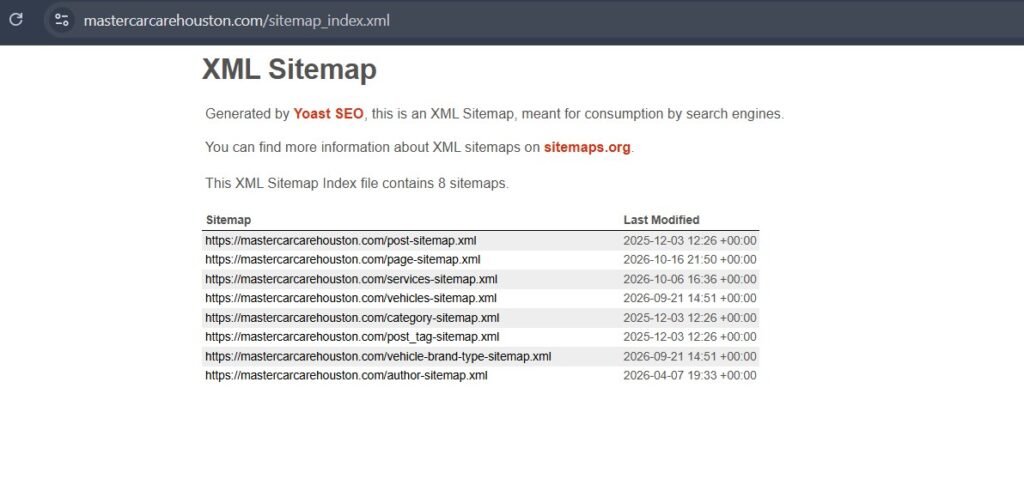
Think of it as a direct message to search engines. It says, “These are my best pages. Please look at them.”
A Short History of the Sitemaps Protocol
Google introduced the Sitemaps protocol in 2005. Yahoo and Microsoft joined in 2006 and adopted one shared standard. That standard lives today at sitemaps.org.
Because the major engines agreed on one format, a single sitemap works across Google, Bing, Yahoo, and others. Bing data also powers several AI search tools, so one file reaches far.
XML Sitemap vs HTML Sitemap
These two sound alike, but they serve different audiences.
An XML sitemap is built for search engine crawlers. Visitors rarely see it.
An HTML sitemap is a normal webpage built for people. It links to your main sections, so visitors can find content quickly.
Most websites need an XML sitemap. An HTML sitemap is optional, but helpful for large sites with complex menus.
How Does an XML Sitemap Work?
Search engines find pages in two main ways. They follow links, and they read sitemaps.
Here is what happens after you publish a sitemap:
- Googlebot finds your sitemap through Search Console or your robots.txt file.
- It reads the list of URLs inside the file.
- It compares those URLs with pages it already knows.
- It schedules new or updated pages for crawling.
- It crawls those pages and decides whether to index them.
Keep one key fact in mind. A sitemap is a hint, not a command. Google decides what to crawl and index based on quality and many other signals.
What Does an XML Sitemap Look Like?
A basic XML sitemap is surprisingly simple. Here is a small example with two pages:
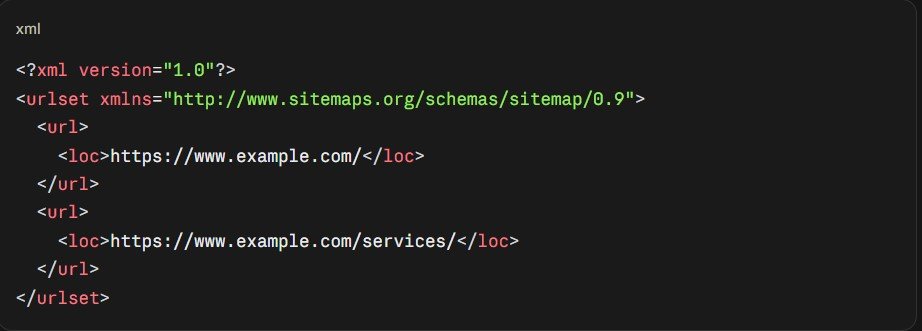
Let’s break down each part.
Required Sitemap Tags
urlset wraps the entire file. It also declares the sitemap namespace, which tells crawlers which rules to follow.
url wraps each individual page entry.
loc holds the full address of the page. It is the only tag every entry must include.
Optional Sitemap Tags (and What Google Actually Uses)
The protocol also offers three optional tags. Google treats them very differently.
lastmod shows when a page last changed in a meaningful way. It uses the W3C Datetime format, usually year, month, and day. Google uses lastmod when it stays consistently accurate.
changefreq suggests how often a page changes, such as weekly or monthly. Google ignores this tag.
priority rates a page’s importance from 0.0 to 1.0. Google ignores this tag too.
Many guides still recommend priority and changefreq. You can skip both. Focus on keeping lastmod honest instead.
What counts as a meaningful change? Google points to updates in main content, structured data, or links. A new copyright year in your footer does not count.
Why Is an XML Sitemap Important for SEO?
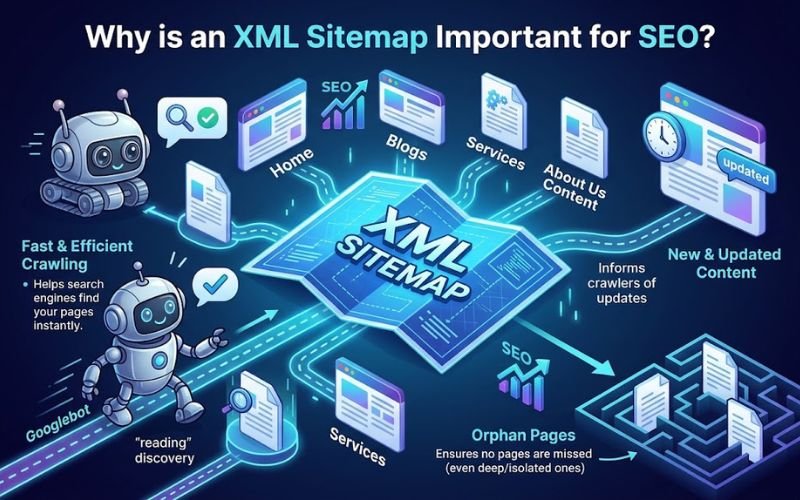
A sitemap will not boost your rankings directly. But it helps the right pages get found faster and more reliably.
Faster Discovery of New Pages
New pages often have few internal or external links. A sitemap gives search engines a direct path to them on day one.
Better Crawl Efficiency
A clean sitemap points crawlers toward pages that matter. This helps them spend less time on low-value URLs. Learn more in our guide on what crawl budget is and how it impacts SEO.
Stronger Canonical Signals
Pages in your sitemap act as a vote for your preferred URLs. Google treats sitemap inclusion as one canonical signal among several. Pair it with proper canonical tags for best results.
Faster Recrawling of Updated Content
An accurate lastmod date tells search engines a page has changed. This can speed up recrawling of refreshed content.
Powerful Indexing Diagnostics
This benefit gets overlooked the most. Search Console lets you filter indexing reports by sitemap. You can see exactly which listed pages are indexed and which are not.
Better Discovery of Media and Language Versions
Sitemap extensions help search engines find images, videos, news articles, and translated pages. These are harder to discover through links alone.
Support for Fresh AI Search Results
Bing has stressed that accurate lastmod dates help its systems keep results fresh. This matters for Bing’s own AI answers and tools that rely on its index. Google’s AI features also draw from its standard index, which sitemaps help populate.
For broader AI visibility tips, read how to rank in Google’s AI Overviews.
Does Every Website Need an XML Sitemap?
Not always, but almost every website benefits from one.
Google says sitemaps help most in these situations:
- Your site is large, with hundreds or thousands of pages.
- Your site is new and has few backlinks.
- Your site has pages with weak internal linking.
- You publish lots of images, videos, or news content.
Google also says a small site may not need one. This applies to sites with roughly 500 pages or fewer that are well linked internally.
Our advice is simple. Create one anyway. Most platforms generate sitemaps for free, and the diagnostic data alone makes it worthwhile.
Types of Sitemaps You Should Know
Google supports several sitemap formats and extensions. Each solves a different problem.
Standard XML Sitemap
This is the most common and versatile format. It lists your main pages and supports all extensions.
Sitemap Index File
A sitemap index is a sitemap of sitemaps. It points to several smaller sitemap files. You need one when your site passes the size limits.
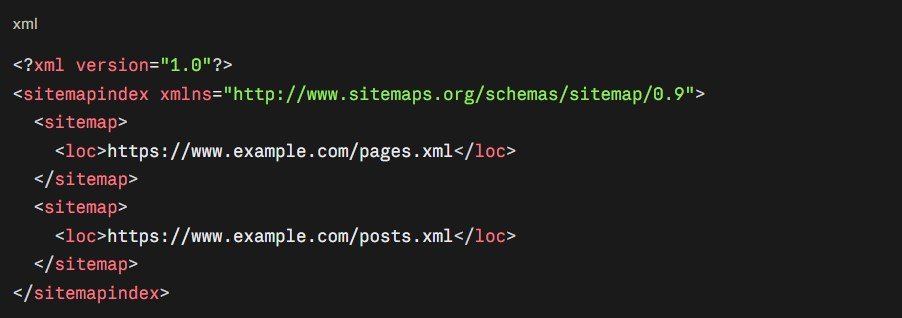
Image Sitemap
An image sitemap helps Google find images it might otherwise miss. This is useful for images loaded through JavaScript.
Note one change. In 2022, Google stopped supporting several image tags, including caption, title, and license. Only the image location tag remains useful.
Images also matter for visual and multimodal search. Read: Can adding more pictures improve SEO?
Video Sitemap
A video sitemap shares details like the title, description, thumbnail, and duration. It helps Google show your videos in video results.
News Sitemap
News sitemaps are for publishers in Google News. They should only include articles published in the last two days. Each news sitemap can hold up to 1,000 URLs.
Hreflang Sitemap
Multilingual websites can list language and regional versions inside the sitemap. This keeps hreflang annotations out of every page’s code. It suits large international sites.
RSS, Atom, and Text Sitemaps
Google also accepts RSS 2.0 and Atom 1.0 feeds as sitemaps. These help Google find your newest content fast.
A text sitemap is the simplest option. It is a plain file with one URL per line. It cannot include dates, images, or videos.
XML Sitemap Rules and Limits
Search engines expect your sitemap to follow strict rules. Break them, and your file may fail.
- Each sitemap can hold up to 50,000 URLs.
- Each file must stay under 50MB uncompressed.
- You may compress sitemaps with gzip to save bandwidth.
- The file must use UTF-8 encoding.
- Every URL must be absolute, including https and the full domain.
- Special characters like ampersands must be escaped.
- URLs must match your preferred domain version exactly.
Location matters too. A sitemap affects only pages inside its own folder and below. That is why the root folder is the best home for it.
There is one exception. If you submit a sitemap through Search Console, Google accepts it from any location you have verified.
Which Pages Should You Include in Your Sitemap?
Your sitemap should list only pages you want to appear in search results. Think quality, not quantity.
Pages to Include
- Your homepage and core service pages.
- Product and category pages.
- Blog posts and helpful guides.
- Location pages for local businesses.
- Landing pages built for organic search.
Every URL should return a 200 status code. Each should also be the canonical, indexable version.
Pages to Exclude
- Redirected URLs, including 301 and 302 redirects.
- Broken pages that return 404 or 410 errors.
- Pages with a noindex tag.
- Pages blocked by robots.txt.
- Duplicate pages and URLs with tracking parameters.
- Thin tag archives, internal search results, and thank you pages.
- Login, cart, and checkout pages.
Including blocked or noindexed pages sends search engines mixed signals. You are asking them to visit a page you also told them to ignore.
If your sitemap includes old redirected URLs, update them to the final destination. Our guide on the difference between 301 and 302 redirects explains each type.
How to Create an XML Sitemap
You have four main options. The best one depends on your platform and site size.
Option 1: Check if Your Platform Already Has One
Many website platforms create sitemaps automatically. Before building anything, type yourdomain.com/sitemap.xml into your browser.
If you see a list of URLs or sitemap files, you already have one. Your job is to review and improve it.
Popular platforms handle sitemaps like this:
- WordPress added a built-in XML sitemap in version 5.5, released in 2020.
- Shopify automatically creates a sitemap at yourdomain.com/sitemap.xml.
- Wix and Squarespace generate sitemaps automatically for every site.
- Webflow offers an automatic sitemap you can switch on in settings.
Option 2: Use a WordPress SEO Plugin
WordPress’s default sitemap offers very little control. SEO plugins give you much more.
Yoast SEO, Rank Math, and All in One SEO all generate smart sitemaps. They let you exclude tags, author archives, and noindexed pages. They also update your sitemap automatically when you publish.
Not sure which plugin to choose? Compare the best WordPress SEO plugins.
Option 3: Use a Sitemap Generator Tool
Generator tools crawl your site and export a sitemap file. They work well for static or custom websites.
Screaming Frog SEO Spider is a popular choice for technical users. Its free version handles up to 500 URLs. Semrush and other platforms also offer free sitemap generators.
Remember one drawback. Most generator tools create a one-time file. You must regenerate it whenever your pages change.
Option 4: Create a Sitemap Manually or With Code
Small, stable websites can write a sitemap by hand in any text editor. Google suggests this only for sites with a few dozen URLs.
Larger custom websites should generate sitemaps from their database. Frameworks like Next.js, Django, and Laravel all support automatic sitemap generation. Ask your developer to update the file whenever content changes.
If your site relies heavily on JavaScript, sitemaps become even more important. Read our guide to JavaScript rendering for SEO to learn why.
How to Submit Your XML Sitemap to Search Engines
Creating a sitemap is only half the job. Search engines also need to find it.
Submit to Google Search Console
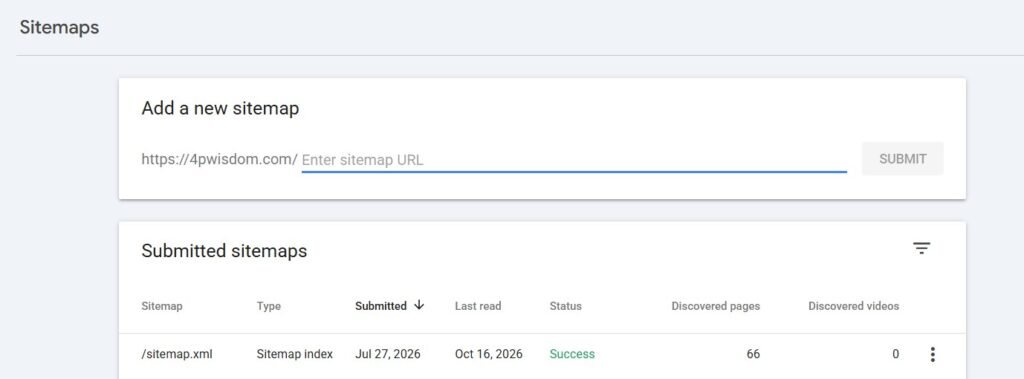
- Open Google Search Console and select your property.
- Click Sitemaps in the left menu.
- Enter your sitemap URL in the Add a new sitemap box.
- Click Submit.
- Check that the status shows Success.
If you use a sitemap index, submit only the index file. Google will find the individual sitemaps inside it.
Submit to Bing Webmaster Tools
Open Bing Webmaster Tools and go to the Sitemaps section. Submit the same URL there.
Bing also supports IndexNow, a protocol that pings search engines the moment content changes. Many CMS platforms and SEO plugins support it. Google does not use IndexNow.
Add Your Sitemap to Robots.txt
Add a single line anywhere in your robots.txt file:
Sitemap: https://www.example.com/sitemap.xml
This helps every search engine find your sitemap automatically. You can list several sitemaps, one per line. Our robots.txt guide explains how sitemaps and crawl rules work together.
Note: Google No Longer Supports Sitemap Pings
Older guides tell you to “ping” Google with your sitemap URL. Google retired that ping endpoint in 2023, because most pings were spam.
Today, Google relies on Search Console submissions, robots.txt references, and accurate lastmod dates. If an old plugin still pings Google, nothing happens.
How to Check and Fix Sitemap Errors
A broken sitemap can quietly hurt your indexing. Check it regularly.
Read the Search Console Sitemaps Report
The Sitemaps report shows three possible statuses.
- Success means Google read your sitemap without problems.
- Has errors means Google read it but found issues inside.
- Couldn’t fetch means Google could not access the file at all.
Click any sitemap to see how many URLs Google discovered from it.
Use the Page Indexing Filter
This is the most useful sitemap trick most people miss.
Open the Pages report in Search Console. Use the filter at the top to select All submitted pages. You will now see indexing data for sitemap URLs only.
Look for pages marked “Crawled, currently not indexed” or “Discovered, currently not indexed.” These are pages you want indexed that Google is ignoring. They usually signal thin content, duplication, or weak internal links.
Common Sitemap Errors and Fixes
- Sitemap could not be read. Check that the file loads in a browser and returns a 200 status.
- Invalid XML format. Validate the file and close every open tag.
- Unescaped characters. Replace raw ampersands with their escaped version.
- URLs not allowed. Make sure every URL matches the verified domain and protocol.
- Sitemap too large. Split it into smaller files and use a sitemap index.
- Redirected or broken URLs. Remove them and regenerate the sitemap.
- Blocked by robots.txt. Unblock the sitemap file and the pages inside it.
Some sitemap fetch failures come from server or firewall issues. Our guides on common crawlability problems and the 400 Bad Request error cover these in detail.
Advanced XML Sitemap Strategies
Most competitors stop at the basics. These strategies help larger websites get much more value from sitemaps.
Segment Sitemaps by Page Type
Split your sitemap into separate files for pages, posts, products, categories, and locations. Then submit each one in Search Console.
Now you can see indexing rates for each section separately. If only 40% of product pages are indexed, you know where to focus.
Keep Lastmod Accurate and Automatic
Never set every lastmod date to today. Search engines quickly learn to ignore fake dates.
Update lastmod only when content, structured data, or important links change. Let your CMS handle this automatically.
Pair Sitemaps With Strong Internal Linking
A sitemap is not a replacement for internal links. Google still relies on links to judge which pages matter most.
A page that sits in your sitemap but has no internal links is an orphan page. These rarely rank well. Our internal linking strategy guide shows how to connect every important page.
Use Separate Sitemaps for Subdomains
Each subdomain generally needs its own sitemap and Search Console property. Subdirectories can share your main sitemap. Our comparison of subdirectory vs subdomain for SEO explains the trade-offs.
Manage Sitemaps at Scale
Programmatic websites can publish thousands of pages at once. Segmented sitemaps help you track whether those pages actually get indexed. Learn more in our programmatic SEO guide.
Protect Your Sitemap During a Migration
Website migrations are risky moments for sitemaps. Keep your old sitemap live for a while after launch, so Google can discover the redirects faster. Then submit the new sitemap with your final URLs.
Our website migration SEO checklist covers every step.
XML Sitemaps for Local Businesses
Local businesses often have location pages, service area pages, and team pages. Make sure each one appears in your sitemap.
A separate location sitemap makes tracking easy for multi-location brands. You can quickly confirm that every city page is indexed.
Your website and Google Business Profile should also support each other. Our Google Business Profile optimization services keep your local details consistent everywhere. For the bigger picture, read our local SEO guide.
XML Sitemap Best Practices Checklist
Use this quick checklist to review any sitemap.
- Your sitemap loads at a predictable address and returns a 200 status.
- It lists only canonical, indexable URLs.
- It contains no redirects, errors, or noindexed pages.
- Every URL uses HTTPS and your preferred domain version.
- Each file stays under 50,000 URLs and 50MB.
- Lastmod dates reflect real content changes.
- Large sites use a sitemap index and segmented files.
- The sitemap is submitted to Google and Bing.
- Its location is listed in robots.txt.
- You review the Search Console report every month.
Sitemaps are just one part of technical health. See the full picture in our technical SEO checklist and our complete SEO checklist.
When to Get Expert Help
Basic sitemaps are easy to set up. Problems start when indexing stalls and nobody knows why.
You may need expert help if important pages refuse to get indexed. The same goes for large ecommerce catalogs, multilingual sites, or upcoming migrations.
At 4P Wisdom, sitemap audits are part of our technical SEO services. We find indexing gaps, clean up your sitemaps, and track the results. You can measure the impact with the SEO KPIs that matter most.
Final Thoughts
An XML sitemap is one of the simplest technical SEO wins available. It costs nothing and takes minutes to set up.
It will not fix weak content or replace internal links. But it helps search engines find your best pages faster. It also gives you clear data on what Google indexes and ignores.
Create your sitemap, keep it clean, and submit it everywhere. Then check it every month as your site grows.
Want a professional review of your sitemap and indexing health? Contact 4P Wisdom today.
Frequently Asked Questions
1. Where can I find my website’s XML sitemap?
Try yourdomain.com/sitemap.xml first. If nothing loads, check your robots.txt file for a sitemap line. Your CMS or SEO plugin settings will also show the exact location.
2. Does an XML sitemap improve rankings?
Not directly. A sitemap helps search engines discover and crawl your pages faster. Rankings still depend on content quality, relevance, links, and user experience.
3. How often should I update my XML sitemap?
Update it whenever you add, remove, or significantly change pages. Most CMS platforms and plugins do this automatically. You only need to resubmit after major structural changes.
4. Why are my sitemap pages not getting indexed?
Submitting a sitemap does not guarantee indexing. Common causes include thin content, duplicate pages, and weak internal linking. Check the Page Indexing report filtered by submitted pages to find the reason.
5. Can I have more than one sitemap?
Yes. Large sites often use several sitemaps organized by page type. Combine them with a sitemap index file, then submit that single index.
6. What is the difference between an XML sitemap and robots.txt?
An XML sitemap tells search engines which pages you want crawled. A robots.txt file tells them which areas to avoid. They work together, and robots.txt can point crawlers to your sitemap.
Anchor text map for your upcoming blogs:
- JavaScript rendering for SEO → https://4pwisdom.com/blog/javascript-rendering/
- robots.txt guide → https://4pwisdom.com/blog/robots-txt/
- common crawlability problems → https://4pwisdom.com/blog/crawlability-problems/
- 400 Bad Request error → https://4pwisdom.com/blog/400-bad-request/
- subdirectory vs subdomain for SEO → https://4pwisdom.com/blog/subdirectory-vs-subdomain/
- programmatic SEO guide → https://4pwisdom.com/blog/programmatic-seo/
- website migration SEO checklist → https://4pwisdom.com/blog/website-migration-seo-checklist/
- technical SEO checklist (pillar backlink) → https://4pwisdom.com/blog/technical-seo-checklist/
Leave a Reply